EVMS User Guide
Christine Lorenz
Joy Goodreau
Kylie Smith
Copyright © 2004 IBM
September 16, 2004
Special Notices
The following terms are registered trademarks of International Business Machines corporation in the United States and/or other countries: AIX, OS/2, System/390. A full list of U.S. trademarks owned by IBM may be found at http://www.ibm.com/legal/copytrade.shtml.
Intel is a trademark or registered trademark of Intel Corporation in the United States, other countries, or both.
Windows is a trademark of Microsoft Corporation in the United States, other countries, or both.
Linux is a trademark of Linus Torvalds.
UNIX is a registered trademark of The Open Group in the United States and other countries.
Other company, product, and service names may be trademarks or service marks of others.
This document is provided "AS IS," with no express or implied warranties. Use the information in this document at your own risk.
License Information
This document may be reproduced or distributed in any form without prior permission provided the copyright notice is retained on all copies. Modified versions of this document may be freely distributed provided that they are clearly identified as such, and this copyright is included intact.
- Table of Contents
- Preface
- 1. What is EVMS?
- 2. Using the EVMS interfaces
- 2.1. EVMS GUI
- 2.2. EVMS Ncurses interface
- 2.3. EVMS Command Line Interpreter
- 3. The EVMS log file and error data collection
- 4. Viewing compatibility volumes after migrating
- 4.1. Using the EVMS GUI
- 4.2. Using Ncurses
- 4.3. Using the CLI
- 5. Obtaining interface display details
- 5.1. Using the EVMS GUI
- 5.2. Using Ncurses
- 5.3. Using the CLI
- 6. Adding and removing a segment manager
- 7. Creating segments
- 8. Creating a container
- 9. Creating regions
- 10. Creating drive links
- 10.1. What is drive linking?
- 10.2. How drive linking is implemented
- 10.3. Creating a drive link
- 10.4. Example: create a drive link
- 10.5. Expanding a drive link
- 10.6. Shrinking a drive link
- 10.7. Deleting a drive link
- 11. Creating snapshots
- 11.1. What is a snapshot?
- 11.2. Creating snapshot objects
- 11.3. Example: create a snapshot
- 11.4. Reinitializing a snapshot
- 11.5. Expanding a snapshot
- 11.6. Deleting a snapshot
- 11.7. Rolling back a snapshot
- 12. Creating volumes
- 13. FSIMs and file system operations
- 14. Clustering operations
- 14.1. Rules and restrictions for creating cluster containers
- 14.2. Example: create a private cluster container
- 14.3. Example: create a shared cluster container
- 14.4. Example: convert a private container to a shared container
- 14.5. Example: convert a shared container to a private container
- 14.6. Example: deport a private or shared container
- 14.7. Deleting a cluster container
- 14.8. Failover and Failback of a private container on Linux-HA
- 14.9. Remote configuration management
- 14.10. Forcing a cluster container to be active
- 15. Converting volumes
- 16. Expanding and shrinking volumes
- 17. Adding features to an existing volume
- 18. Selectively activating volumes and objects
- 19. Mounting and unmounting volumes from within EVMS
- 19.1. Mounting a volume
- 19.2. Unmounting a volume
- 19.3. The SWAPFS file system
- 20. Plug-in operations tasks
- 21. Deleting objects
- 22. Replacing objects
- 23. Moving segment storage objects
- A. The DOS plug-in
- B. The MD region manager
- C. The LVM plug-in
- C.1. How LVM is implemented
- C.2. Container operations
- C.3. Region operations
- D. The LVM2 plug-in
- D.1. Container operations
- D.2. Region operations
- E. The CSM plug-in
- F. JFS file system interface module
- G. XFS file system interface module
- H. ReiserFS file system interface module
- I. Ext-2/3 file system interface module
- J. OpenGFS file system interface module
- K. NTFS file system interface module
- List of Tables
- 1. Organization of the EVMS User Guide
- 1-1. EVMS user interfaces
- 2-1. Accelerator keys in the Main Window
- 2-2. Accelerator keys in the views
- 2-3. Accelerator keys in the selection window
- 2-4. Accelerator keys in the configuration options window
- 2-5. Widget navigation keys in the configuration options window
- 3-1. EVMS logging levels
- 16-1. FSIM support for expand and shrink operations
- List of Figures
- 4-1. GUI start-up window
- 4-2. Ncurses start-up window
- 4-3. CLI volume query results
- List of Examples
- 6-1. Add the DOS Segment Manager
- 6-2. Remove the DOS Segment Manager
- 7-1. Create a 100MB segment
- 8-1. Create "Sample Container"
- 9-1. Create "Sample Region"
- 10-1. Create a drive link
- 11-1. Create a snapshot of a volume
- 12-1. Create an EVMS native volume
- 12-2. Create a compatibility volume
- 13-1. Add a JFS File System to a Volume
- 13-2. Check a JFS File System
- 14-1. Create a private cluster container
- 14-2. Create a shared cluster container
- 14-3. Convert a private container to shared
- 14-4. Convert a shared container to private
- 14-5. Deport a cluster container
- 15-1. Convert a compatibility volume
- 15-2. Convert an EVMS volume
- 16-1. Shrink a volume
- 16-2. Expand a volume
- 17-1. Add drive linking to an existing volume
- 20-1. Add a spare disk to a compatibility volume made from an MDRaid5 region
- 21-1. Destroy a volume and the region and container below it
Preface
This guide tells how to configure and manage Enterprise Volume Management System (EVMS). EVMS is a storage management program that provides a single framework for managing and administering your system's storage.
This guide is intended for Linux system administrators and users who are responsible for setting up and maintaining EVMS.
For additional information about EVMS or to ask questions specific to your distribution, refer to the EVMS mailing lists. You can view the list archives or subscribe to the lists from the EVMS Project web site.
The following table shows how this guide is organized:
Table 1. Organization of the EVMS User Guide
| Chapter or appendix title | Contents |
|---|---|
| 1. What is EVMS? | Discusses general EVMS concepts and terms. |
| 2. Using the EVMS interfaces | Describes the three EVMS user interfaces and how to use them. |
| 3. The EVMS log file and error data collection | Discusses the EVMS information and error log file and explains how to change the logging level. |
| 4. Viewing compatibility volumes after migrating | Tells how to view existing files that have been migrated to EVMS. |
| 5. Obtaining interface display details | Tells how to view detailed information about EVMS objects. |
| 6. Adding and removing a segment manager | Discusses segments and explains how to add and remove a segment manager. |
| 7. Creating segments | Explains when and how to create segments. |
| 8. Creating containers | Discusses containers and explains when and how to create them. |
| 9. Creating regions | Discusses regions and explains when and how to create them. |
| 10. Creating drive links | Discusses the drive linking feature and tells how to create a drive link. |
| 11. Creating snapshots | Discusses snapshotting and tells how to create a snapshot. |
| 12. Creating volumes | Explains when and how to create volumes. |
| 13. FSIMs and file system operations | Discusses the standard FSIMs shipped with EVMS and provides examples of adding file systems and coordinating file checks with the FSIMs. |
| 14. Clustering operations | Describes EVMS clustering and how to create private and shared containers. |
| 15. Converting volumes | Explains how to convert EVMS native volumes to compatibility volumes and compatibility volumes to EVMS native volumes. |
| 16. Expanding and shrinking volumes | Tells how to expand and shrink EVMS volumes with the various EVMS user interfaces. |
| 17. Adding features to an existing volume | Tells how to add additional features, such as drive linking, to an existing volume. |
| 18. Selectively activating volumes and objects | Explains how to selectively activate and deactive volumes and options. |
| 19. Mounting and unmounting volumes from within EVMS. | Tells how to have EVMS mount and unmount volumes so you do not have to open a separate terminal session. |
| 20. Plug-in operations tasks | Discusses the plug-in tasks that are available within the context of a particular plug-in. |
| 21. Deleting objects | Tells how to safely delete EVMS objects. |
| 22. Replacing objects | Tells how to change the configuration of a volume or storage object. |
| 23. Moving segment storage objects | Discusses how to use the move function for moving segments. |
| A. The DOS plug-in | Provides details about the DOS plug-in, which is a segment manager plug-in. |
| B. The MD region manager | Explains the Multiple Disks (MD) support in Linux that is a software implementation of RAID. |
| C. The LVM plug-in | Tells how the LVM plug-in is implemented and how to perform container operations. |
| D. The LVM2 plug-in | Tells how the LVM2 plug-in is implemented and how to perform container operations on LVM2 containers. |
| E. The CSM plug-in | Explains how the Cluster Segment Manager (CSM) plug-in is implemented and how to perform CSM operations. |
| F. JFS file system interface module | Provides information about the JFS FSIM. |
| G. XFS file system interface module | Provides information about the XFS FSIM. |
| H. ReiserFS file system interface module | Provides information about the ReiserFS FSIM. |
| I. Ext-2/3 file system interface module | Provides information about the Ext-2/3 FSIM. |
| J. OpenGFS file system interface module | Provides information about the OpenGFS FSIM. |
| K. NTFS file system interface module | Provides information about the NTFS FSIM. |
Chapter 1. What is EVMS?
EVMS brings a new model of volume management to Linux®. EVMS integrates all aspects of volume management, such as disk partitioning, Linux logical volume manager (LVM) and multi-disk (MD) management, and file system operations into a single cohesive package. With EVMS, various volume management technologies are accessible through one interface, and new technologies can be added as plug-ins as they are developed.
1.1. Why choose EVMS?
EVMS lets you manage storage space in a way that is more intuitive and flexible than many other Linux volume management systems. Practical tasks, such as migrating disks or adding new disks to your Linux system, become more manageable with EVMS because EVMS can recognize and read from different volume types and file systems. EVMS provides additional safety controls by not allowing commands that are unsafe. These controls help maintain the integrity of the data stored on the system.
You can use EVMS to create and manage data storage. With EVMS, you can use multiple volume management technologies under one framework while ensuring your system still interacts correctly with stored data. With EVMS, you are can use drive linking, shrink and expand volumes, create snapshots of your volumes, and set up RAID (redundant array of independent devices) features for your system. You can also use many types of file systems and manipulate these storage pieces in ways that best meet the needs of your particular work environment.
EVMS also provides the capability to manage data on storage that is physically shared by nodes in a cluster. This shared storage allows data to be highly available from different nodes in the cluster.
1.2. The EVMS user interfaces
There are currently three user interfaces available for EVMS: graphical (GUI), text mode (Ncurses), and the Command Line Interpreter (CLI). Additionally, you can use the EVMS Application Programming Interface to implement your own customized user interface.
Table 1-1 tells more about each of the EVMS user interfaces.
Table 1-1. EVMS user interfaces
| User interface | Typical user | Types of use | Function |
|---|---|---|---|
| GUI | All | All uses except automation | Allows you to choose from available options only, instead of having to sort through all the options, including ones that are not available at that point in the process. |
| Ncurses | Users who don't have GTK libraries or X Window Systems on their machines | All uses except automation | Allows you to choose from available options only, instead of having to sort through all the options, including ones that are not available at that point in the process. |
| Command Line | Expert | All uses | Allows easy automation of tasks |
1.3. EVMS terminology
To avoid confusion with other terms that describe volume management in general, EVMS uses a specific set of terms. These terms are listed, from most fundamental to most comprehensive, as follows:
- Logical disk
Representation of anything EVMS can access as a physical disk. In EVMS, physical disks are logical disks.
- Sector
The lowest level of addressability on a block device. This definition is in keeping with the standard meaning found in other management systems.
- Disk segment
An ordered set of physically contiguous sectors residing on the same storage object. The general analogy for a segment is to a traditional disk partition, such as DOS or OS/2 ®
- Storage region
An ordered set of logically contiguous sectors that are not necessarily physically contiguous.
- Storage object
Any persistent memory structure in EVMS that can be used to build objects or create a volume. Storage object is a generic term for disks, segments, regions, and feature objects.
- Storage container
A collection of storage objects. A storage container consumes one set of storage objects and produces new storage objects. One common subset of storage containers is volume groups, such as AIX® or LVM.
Storage containers can be either of type private or cluster.
- Cluster storage container
Specialized storage containers that consume only disk objects that are physically accessible from all nodes of a cluster.
- Private storage container
A collection of disks that are physically accessible from all nodes of a cluster, managed as a single pool of storage, and owned and accessed by a single node of the cluster at any given time.
- Shared storage container
A collection of disks that are physically accessible from all nodes of a cluster, managed as a single pool of storage, and owned and accessed by all nodes of the cluster simultaneously.
- Deported storage container
A shared cluster container that is not owned by any node of the cluster.
- Feature object
A storage object that contains an EVMS native feature.
An EVMS Native Feature is a function of volume management designed and implemented by EVMS. These features are not intended to be backward compatible with other volume management technologies.
- Logical volume
A volume that consumes a storage object and exports something mountable. There are two varieties of logical volumes: EVMS Volumes and Compatibility volumes.
EVMS Volumes contain EVMS native metadata and can support all EVMS features. /dev/evms/my_volume would be an example of an EVMS Volume.
Compatibility volumes do not contain any EVMS native metadata. Compatibility volumes are backward compatible to their particular scheme, but they cannot support EVMS features. /dev/evms/md/md0 would be an example of a compatibility volume.
1.4. What makes EVMS so flexible?
There are numerous drivers in the Linux kernel, such as Device Mapper and MD (software RAID), that implement volume management schemes. EVMS is built on top of these drivers to provide one framework for combining and accessing the capabilities.
The EVMS Engine handles the creation, configuration, and management of volumes, segments, and disks. The EVMS Engine is a programmatic interface to the EVMS system. User interfaces and programs that use EVMS must go through the Engine.
EVMS provides the capacity for plug-in modules to the Engine that allow EVMS to perform specialized tasks without altering the core code. These plug-in modules allow EVMS to be more extensible and customizable than other volume management systems.
1.5. Plug-in layer definitions
EVMS defines a layered architecture where plug-ins in each layer create abstractions of the layer or layers below. EVMS also allows most plug-ins to create abstractions of objects within the same layer. The following list defines these layers from the bottom up.
- Device managers
The first (bottom) layer consists of device managers. These plug-ins communicate with hardware device drivers to create the first EVMS objects. Currently, all devices are handled by a single plug-in. Future releases of EVMS might need additional device managers for network device management (for example, to manage disks on a storage area network (SAN)).
- Segment managers
The second layer consists of segment managers. These plug-ins handle the segmenting, or partitioning, of disk drives. The Engine components can replace partitioning programs, such as fdisk and Disk Druid, and EVMS uses Device Mapper to replace the in-kernel disk partitioning code. Segment managers can also be "stacked," meaning that one segment manager can take as input the output from another segment manager.
EVMS provides the following segment managers: DOS, GPT, System/390® (S/390), Cluster, BSD, Mac, and BBR. Other segment manager plug-ins can be added to support other partitioning schemes.
- Region managers
The third layer consists of region managers. This layer provides a place for plug-ins that ensure compatibility with existing volume management schemes in Linux and other operating systems. Region managers are intended to model systems that provide a logical abstraction above disks or partitions.
Like segment managers, region managers can also be stacked. Therefore, the input object(s) to a region manager can be disks, segments, or other regions.
There are currently three region manager plug-ins in EVMS: Linux LVM, LVM2, and Multi-Disk (MD).
- Linux LVM
The Linux LVM plug-in provides compatibility with the Linux LVM and allows the creation of volume groups (known in EVMS as containers) and logical volumes (known in EVMS as regions).
- LVM2
The LVM2 plug-in provides compatibility with the new volume format introduced by the LVM2 tools from Red Hat. This plug-in is very similar in functionality to the LVM plug-in. The primary difference is the new, improved metadata format.
- MD
The Multi-Disk (MD) plug-in for RAID provides RAID levels linear, 0, 1, 4, and 5 in software. MD is one plug-in that displays as four region managers that you can choose from.
- EVMS features
The next layer consists of EVMS features. This layer is where new EVMS-native functionality is implemented. EVMS features can be built on any object in the system, including disks, segments, regions, or other feature objects. All EVMS features share a common type of metadata, which makes discovery of feature objects much more efficient, and recovery of broken features objects much more reliable. There are three features currently available in EVMS: drive linking, Bad Block Relocation, and snapshotting.
- Drive Linking
Drive linking allows any number of objects to be linearly concatenated together into a single object. A drive linked volume can be expanded by adding another storage object to the end or shrunk by removing the last object.
- Bad Block Relocation
Bad Block Relocation (BBR) monitors its I/O path and detects write failures (which can be caused by a damaged disk). In the event of such a failure, the data from that request is stored in a new location. BBR keeps track of this remapping. Additional I/Os to that location are redirected to the new location.
- Snapshotting
The Snapshotting feature provides a mechanism for creating a "frozen" copy of a volume at a single instant in time, without having to take that volume off-line. This is useful for performing backups on a live system. Snapshots work with any volume (EVMS or compatibility), and can use any other available object as a backing store. After a snapshot is created and made into an EVMS volume, writes to the "original" volume cause the original contents of that location to be copied to the snapshot's storage object. Reads to the snapshot volume look like they come from the original at the time the snapshot was created.
- File System Interface Modules
File System Interface Modules (FSIMs) provide coordination with the file systems during certain volume management operations. For instance, when expanding or shrinking a volume, the file system must also be expanded or shrunk to the appropriate size. Ordering in this example is also important; a file system cannot be expanded before the volume, and a volume cannot be shrunk before the file system. The FSIMs allow EVMS to ensure this coordination and ordering.
FSIMs also perform file system operations from one of the EVMS user interfaces. For instance, a user can make new file systems and check existing file systems by interacting with the FSIM.
- Cluster Manager Interface Modules
Cluster Manager Interface Modules, also known as the EVMS Clustered Engine (ECE), interface with the local cluster manager installed on the system. The ECE provides a standardized ECE API to the Engine while hiding cluster manager details from the Engine.
Chapter 2. Using the EVMS interfaces
This chapter explains how to use the EVMS GUI, Ncurses, and CLI interfaces. This chapter also includes information about basic navigation and commands available through the CLI.
2.1. EVMS GUI
The EVMS GUI is a flexible and easy-to-use interface for administering volumes and storage objects. Many users find the EVMS GUI easy to use because it displays which storage objects, actions, and plug-ins are acceptable for a particular task.
2.1.1. Using context sensitive and action menus
The EVMS GUI lets you accomplish most tasks in one of two ways: context sensitive menus or the menu.
Context sensitive menus are available from any of the main "views." Each view corresponds to a page in a notebook widget located on the EVMS GUI main window. These views are made up of different trees or lists that visually represent the organization of different object types, including volumes, feature objects, regions, containers, segments, or disks.
You can view the context sensitive menu for an object by right-clicking on that object. The actions that are available for that object display on the screen. The GUI will only present actions that are acceptable for the selected object at that point in the process. These actions are not always a complete set.
To use the menu, choose ->->. The menu provides a more guided path for completing a task than do context sensitive menus. The option is similar to the wizard or druid approach used by many GUI applications.
All of the operations you need to perform as an administrator are available through the menu.
2.1.2. Saving changes
All of the changes that you make while in the EVMS GUI are only in memory until you save the changes. In order to make your changes permanent, you must save all changes before exiting. If you forget to save the changes and decide to exit or close the EVMS GUI, you are reminded to save any pending changes.
To explicitly save all the changes you made, select ->, and click the button.
2.1.3. Refreshing changes
The button updates the view and allows you to see changes, like mount points, that might have changed outside of the GUI.
2.1.4. Using the GUI "+"
Along the left hand side of the panel views in the GUI is a "+" that resides beside each item. When you click the "+," the objects that are included in the item are displayed. If any of the objects that display also have a "+" beside them, you can expand them further by clicking on the "+" next to each object name.
2.1.5. Using the accelerator keys
You can avoid using a mouse for navigating the EVMS GUI by using a series of key strokes, or "accelerator keys," instead. The following sections tell how to use accelerator keys in the EVMS Main Window, the Selection Window, and the Configuration Options Window.
2.1.5.1. Main Window accelerator keys
In the Main Window view, use the following keys to navigate:
Table 2-1. Accelerator keys in the Main Window
| Left and right arrow keys | Navigate between the notebook tabs of the different views. |
| Down arrow and Spacebar | Bring keyboard focus into the view. |
While in a view, use the following keys to navigate:
Table 2-2. Accelerator keys in the views
| up and down arrows | Allow movement around the window. |
| "+" | Opens an object tree. |
| "-" | Collapses an object tree. |
| ENTER | Brings up the context menu (on a row). |
| Arrows | Navigate a context menu. |
| ENTER | Activates an item. |
| ESC | Dismisses the context menu. |
| Tab | Gets you out of the view and moves you back up to the notebook tab. |
To access the action bar menu, press Alt and then the underlined accelerator key for the menu choice (for example, "A" for the dropdown menu).
In a dropdown menu, you can use the up and down arrows to navigate. You could also just type the accelerator key for the menu item, which is the character with the underscore. For example, to initiate a command to delete a container, type Alt + "A" + "D" + "C."
Ctrl-S is a shortcut to initiate saving changes. Ctrl-Q is a shortcut to initiate quitting the EVMS GUI.
2.1.5.2. Accelerator keys in the selection window
A selection window typically contains a selection list, plus four to five buttons below it. Use the following keys to navigate in the selection window:
Table 2-3. Accelerator keys in the selection window
| Tab | Navigates (changes keyboard focus) between the list and the buttons. |
| Up and down arrows | Navigates within the selection list. |
| Spacebar | Selects and deselects items in the selection list. |
| Enter on the button or type the accelerator character (if one exists) | Activates a button |
2.1.5.3. Configuration options window accelerator keys
Use the following keys to navigate in the configuration options window:
Table 2-4. Accelerator keys in the configuration options window
| Tab | Cycles focus between fields and buttons |
| Left and right arrows | Navigate the folder tabs if the window has a widget notebook. |
| Spacebar or the down arrow | Switches focus to a different notebook page. |
| Enter or type the accelerator character (if one exists) | Activates a button |
For widgets, use the following keys to navigate:
Table 2-5. Widget navigation keys in the configuration options window
| Tab | Cycles forward through a set of widgets |
| Shift-Tab | Cycles backward through a set of widgets. |
The widget navigation, selection, and activation is the same in all dialog windows.
2.2. EVMS Ncurses interface
The EVMS Ncurses (evmsn) user interface is a menu-driven interface with characteristics similar to those of the EVMS GUI. Like the EVMS GUI, evmsn can accommodate new plug-ins and features without requiring any code changes.
The EVMS Ncurses user interface allows you to manage volumes on systems that do not have the X and GTK+ libraries that are required by the EVMS GUI.
2.2.1. Navigating through EVMS Ncurses
The EVMS Ncurses user interface initially displays a list of logical volumes similar to the logical volumes view in the EVMS GUI. Ncurses also provides a menu bar similar to the menu bar in the EVMS GUI.
A general guide to navigating through the layout of the Ncurses window is listed below:
Tab cycles you through the available views.
Status messages and tips are displayed on the last line of the screen.
Typing the accelerator character (the letter highlighted in red) for any menu item activates that item. For example, typing A in any view brings down the menu.
Typing A + Q in a view quits the application.
Typing A + S in a view saves changes made during an evmsn session.
Use the up and down arrows to highlight an object in a view. Pressing Enter while an object in a view is highlighted presents a context popup menu.
Dismiss a context popup menu by pressing Esc or by selecting a menu item with the up and down arrows and pressing Enter to activate the menu item.
Dialog windows are similar in design to the EVMS GUI dialogs, which allow a user to navigate forward and backward through a series of dialogs using and . A general guide to dialog windows is listed below:
Tab cycles you through the available buttons. Note that some buttons might not be available until a valid selection is made.
The left and right arrows can also be used to move to an available button.
Navigate a selection list with the up and down arrows.
Toggle the selection of an item in a list with spacebar.
Activate a button that has the current focus with Enter. If the button has an accelerator character (highlighted in red), you can also activate the button by typing the accelerator character regardless of whether the button has the current focus.
The EVMS Ncurses user interface, like the EVMS GUI, provides context menus for actions that are available only to the selected object in a view. Ncurses also provides context menus for items that are available from the menu. These context menus present a list of commands available for a certain object.
2.2.2. Saving changes
All changes you make while in the EVMS Ncurses are only in memory until you save the changes. In order to make the changes permanent, save all changes before exiting. If you forget to save the changes and decide to exit the EVMS Ncurses interface, you will be reminded of the unsaved changes and be given the chance to save or discard the changes before exiting.
To explicitly save all changes, press A + S and confirm that you want to save changes.
2.3. EVMS Command Line Interpreter
The EVMS Command Line Interpreter (EVMS CLI) provides a command-driven user interface for EVMS. The EVMS CLI helps automate volume management tasks and provides an interactive mode in situations where the EVMS GUI is not available.
Because the EVMS CLI is an interpreter, it operates differently than command line utilities for the operating system. The options you specify on the EVMS CLI command line to invoke the EVMS CLI control how the EVMS CLI operates. For example, the command line options tell the CLI where to go for commands to interpret and how often the EVMS CLI must save changes to disk. When invoked, the EVMS CLI prompts for commands.
The volume management commands the EVMS CLI understands are specified in the /usr/src/evms-2.2.0/engine2/ui/cli/grammar.ps file that accompanies the EVMS package. These commands are described in detail in the EVMS man page, and help on these commands is available from within the EVMS CLI.
2.3.1. Using the EVMS CLI
Use the evms command to start the EVMS CLI. If you do not enter an option with evms, the EVMS CLI starts in interactive mode. In interactive mode, the EVMS CLI prompts you for commands. The result of each command is immediately saved to disk. The EVMS CLI exits when you type exit. You can modify this behavior by using the following options with evms:
- -b
This option indicates that you are running in batch mode and anytime there is a prompt for input from the user, the default value is accepted automatically. This is the default behavior with the -f option.
- -c
This option saves changes to disk only when EVMS CLI exits, not after each command.
- -f filename
This option tells the EVMS CLI to use filename as the source of commands. The EVMS CLI exits when it reaches the end of filename.
- -p
This option only parses commands; it does not execute them. When combined with the -f option, the -p option detects syntax errors in command files.
- -h
This option displays help information for options used with the evms command.
- -rl
This option tells the CLI that all remaining items on the command line are replacement parameters for use with EVMS commands.

NOTE Replacement parameters are accessed in EVMS commands using the $(x) notation, where x is the number identifying which replacement parameter to use. Replacement parameters are assigned numbers (starting with 1) as they are encountered on the command line. Substitutions are not made within comments or quoted strings.
An example would be:
evms -c -f testcase -rl sda sdb
sda is the replacement for parameter1 and sdb is the replacement for parameter2
| NOTE |
|---|---|
Information on less commonly used options is available in the EVMS man page. |
2.3.2. Notes on commands and command files
The EVMS CLI allows multiple commands to be displayed on a command line. When you specify multiple commands on a single command line, separate the commands with a colon ( : ). This is important for command files because the EVMS CLI sees a command file as a single long command line. The EVMS CLI has no concept of lines in the file and ignores spaces. These features allow a command in a command file to span several lines and use whatever indentation or margins that are convenient. The only requirement is that the command separator (the colon) be present between commands.
The EVMS CLI ignores spaces unless they occur within quote marks. Place in quotation marks a name that contains spaces or other non-printable or control characters. If the name contains a quotation mark as part of the name, the quotation mark must be "doubled," as shown in the following example:
"This is a name containing ""embedded"" quote marks." |
EVMS CLI keywords are not case sensitive, but EVMS names are case sensitive. Sizes can be input in any units with a unit label, such as KB, MB, GB, or TB.
Finally, C programming language style comments are supported by the EVMS CLI. Comments can begin and end anywhere except within a quoted string, as shown in the following example:
/* This is a comment */ Create:Vo/*This is a silly place for a comment, but it is allowed.*/lume,"lvm/Sample Container/My LVM Volume",compatibility |
Chapter 3. The EVMS log file and error data collection
This chapter discusses the EVMS information and error log file and the various logging levels. It also explains how to change the logging level.
3.1. About the EVMS log file
The EVMS Engine creates a log file called /var/log/evmsEngine.log every time the Engine is opened. The Engine also saves copies of up to nine previous Engine sessions in the files /var/log/evmsEngine.n.log, where n is the number of the session between 1 and 9.
3.2. Log file logging levels
There are several possible logging levels that you can choose to be collected in /var/log/evmsEngine.log. The "lowest" logging level, critical, collects only messages about serious system problems, whereas the "highest" level, everything, collects all logging related messages. When you specify a particular logging level, the Engine collects messages for that level and all the levels below it.
The following table lists the allowable log levels and the information they provide:
Table 3-1. EVMS logging levels
| Level name | Description |
|---|---|
| Critical | The health of the system or the Engine is in jeopardy; for example, an operation has failed because there is not enough memory. |
| Serious | An operation did not succeed. |
| Error | The user has caused an error. The error messages are provided to help the user correct the problem. |
| Warning | An error has occurred that the system might or might not be able to work around. |
| Default | An error has occurred that the system has already worked around. |
| Details | Detailed information about the system. |
| Entry_Exit | Traces the entries and exits of functions. |
| Debug | Information that helps the user debug a problem. |
| Extra | More information that helps the user debug a problem than the "Debug" level provides. |
| Everything | Verbose output. |
3.3. Specifying the logging levels
By default, when any of the EVMS interfaces is opened, the Engine logs the Default level of messages into the /var/log/evmsEngine.log file. However, if your system is having problems and you want to see more of what is happening, you can change the logging level to be higher; if you want fewer logging messages, you can change the logging level to be lower. To change the logging level, specify the -d parameter and the log level on the interface open call. The following examples show how to open the various interfaces with the highest logging level (everything):
GUI: evmsgui -d everything |
Ncurses: evmsn -d everything |
CLI: evms -d everything |
| NOTE |
|---|---|
If you use the EVMS mailing list for help with a problem, providing to us the log file that is created when you open one of the interfaces (as shown in the previous commands) makes it easier for us to help you. |
The EVMS GUI lets you change the logging level during an Engine session. To do so, follow these steps:
Select ->->.
Click the you want.
The CLI command, probe, opens and closes the Engine, which causes a new log to start. The log that existed before the probe command was issued is renamed /var/log/evmsEngine.1.log and the new log is named /var/log/evmsEngine.log.
If you will be frequently using a different log level than the default, you can specify the default logging level in /etc/evms.conf rather than having to use the -d option when starting the user interface. The "debug_level" option in the "engine" section sets the default logging level for when the Engine is opened. Using the -d option during the command invocation overrides the setting in /etc/evms.conf.
Chapter 4. Viewing compatibility volumes after migrating
Migrating to EVMS allows you to have the flexibility of EVMS without losing the integrity of your existing data. EVMS discovers existing volume management volumes as compatibility volumes. After you have installed EVMS, you can view your existing volumes with the interface of your choice.
4.1. Using the EVMS GUI
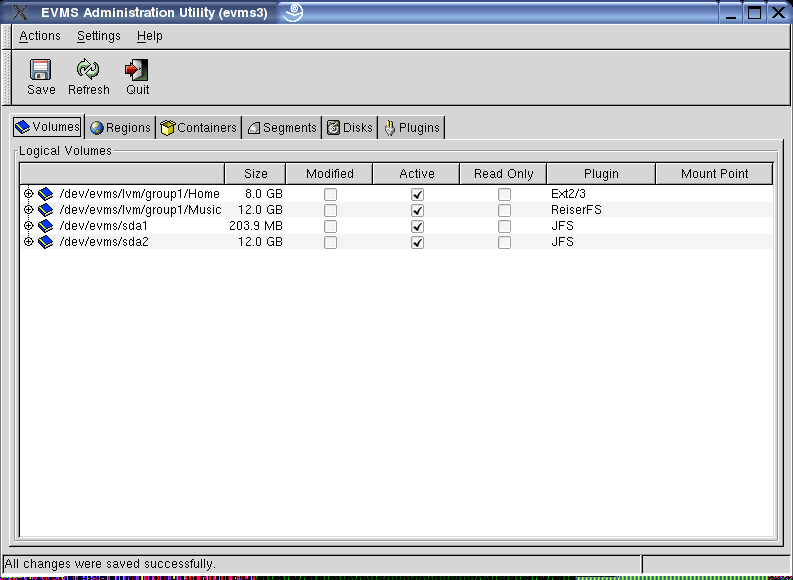
If you are using the EVMS GUI as your preferred interface, you can view your migrated volumes by typing evmsgui at the command prompt. The following window opens, listing your migrated volumes.
4.2. Using Ncurses
If you are using the Ncurses interface, you can view your migrated volumes by typing evmsn at the command prompt. The following window opens, listing your migrated volumes.

4.3. Using the CLI
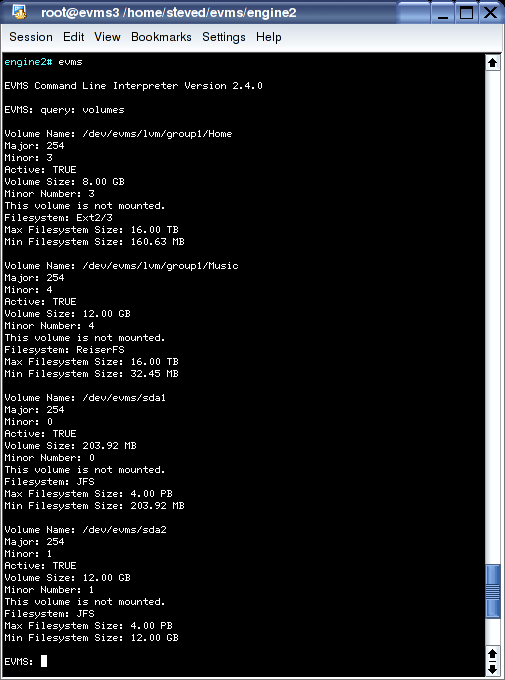
If you are using the Command Line Interpreter (CLI) interface, you can view your migrated volumes by following these steps:
Start the Command Line Interpreter by typing evms at the command line.
Query the volumes by typing the following at the EVMS prompt:
query:volumes
Your migrated volumes are displayed as results of the query.
Chapter 5. Obtaining interface display details
The EVMS interfaces let you view more detailed information about an EVMS object than what is readily available from the main views of the EVMS user interfaces. The type and extent of additional information available is dependent on the interface you use. For example, the EVMS GUI provides more in-depth information than does the CLI.
The following sections show how to find detailed information on the region lvm/Sample Container/Sample Region, which is part of volume /dev/evms/Sample Volume (created in section 10.2).
5.1. Using the EVMS GUI
With the EVMS GUI, it is only possible to display additional details on an object through the Context Sensitive Menus, as shown in the following steps:
Looking at the , click the "+" next to volume /dev/evms/Sample Volume. Alternatively, look at the view.
Right click lvm/Sample Container/Sample Region.
Point at and click. A new window opens with additional information about the selected region.
Click by the . Another window opens that displays the mappings of logical extents to physical extents.
5.2. Using Ncurses
Follow these steps to display additional details on an object with Ncurses:
Press Tab to reach the Storage Regions view.
Scroll down using the down arrow until lvm/Sample Container/Sample Region is highlighted.
Press Enter.
In the context menu, scroll down using the down arrow to highlight "Display Details..."
Press Enter to activate the menu item.
In the Detailed Information dialog, use the down arrow to highlight the "Logical Extents" item and then use spacebar to open another window that displays the mappings of logical extents to physical extents.
5.3. Using the CLI
Use the query command (abbreviated q) with filters to display details about EVMS objects. There are two filters that are especially helpful for navigating within the command line: list options (abbreviated lo) and extended info (abbreviated ei).
The list options command tells you what can currently be done and what options you can specify. To use this command, first build a traditional query command starting with the command name query, followed by a colon (:), and then the type of object you want to query (for example, volumes, objects, plug-ins). Then, you can use filters to narrow the search to only the area you are interested in. For example, to determine the acceptable actions at the current time on lvm/Sample Container/Sample Region, enter the following command:
query: regions, region="lvm/Sample Container/Sample Region", list options |
The extended info filter is the equivalent of Display Details in the EVMS GUI and Ncurses interfaces. The command takes the following form: query, followed by a colon (:), the filter (extended info), a comma (,), and the object you want more information about. The command returns a list containing the field names, titles, descriptions and values for each field defined for the object. For example, to obtain details on lvm/Sample Container/Sample Region, enter the following command:
query: extended info, "lvm/Sample Container/Sample Region" |
Many of the field names that are returned by the extended info filter can be expanded further by specifying the field name or names at the end of the command, separated by commas. For example, if you wanted additional information about logical extents, the query would look like the following:
query: extended info, "lvm/Sample Container/Sample Region", Extents |
Chapter 6. Adding and removing a segment manager
This chapter discusses when to use a segment manager, what the different types of segment managers are, how to add a segment manager to a disk, and how to remove a segment manager.
6.1. When to add a segment manager
Adding a segment manager to a disk allows the disk to be subdivided into smaller storage objects called disk segments. The add command causes a segment manager to create appropriate metadata and expose freespace that the segment manager finds on the disk. You need to add segment managers when you have a new disk or when you are switching from one partitioning scheme to another.
EVMS displays disk segments as the following types:
Data: a set of contiguous sectors that has been allocated from a disk and can be used to construct a volume or object.
Freespace: a set of contiguous sectors that are unallocated or not in use. Freespace can be used to create a segment.
Metadata: a set of contiguous sectors that contain information needed by the segment manager.
6.2. Types of segment managers
There are seven types of segment managers in EVMS: DOS, GPT, S/390, Cluster, BSD, MAC, and BBR.
6.2.1. DOS Segment Manager
The most commonly used segment manager is the DOS Segment Manager. This plug-in provides support for traditional DOS disk partitioning. The DOS Segment Manager also recognizes and supports the following variations of the DOS partitioning scheme:
OS/2: an OS/2 disk has additional metadata sectors that contain information needed to reconstruct disk segments.
Embedded partitions: support for BSD, SolarisX86, and UnixWare is sometimes found embedded in primary DOS partitions. The DOS Segment Manager recognizes and supports these slices as disk segments.
6.2.2. GUID Partitioning Table (GPT) Segment Manager
The GUID Partitioning Table (GPT) Segment Manager handles the new GPT partitioning scheme on IA-64 machines. The Intel Extensible Firmware Interface Specification requires that firmware be able to discover partitions and produce logical devices that correspond to disk partitions. The partitioning scheme described in the specification is called GPT due to the extensive use of Globally Unique Identifier (GUID) tagging. GUID is a 128 bit long identifier, also referred to as a Universally Unique Identifier (UUID). As described in the Intel Wired For Management Baseline Specification, a GUID is a combination of time and space fields that produce an identifier that is unique across an entire UUID space. These identifiers are used extensively on GPT partitioned disks for tagging entire disks and individual partitions. GPT partitioned disks serve several functions, such as:
keeping a primary and backup copy of metadata
replacing msdos partition nesting by allowing many partitions
using 64 bit logical block addressing
tagging partitions and disks with GUID descriptors
The GPT Segment Manager scales better to large disks. It provides more redundancy with added reliability and uses unique names. However, the GPT Segment Manager is not compatible with DOS, OS/2, or Windows®.
6.2.3. S/390 Segment Manager
The S/390 Segment Manager is used exclusively on System/390 mainframes. The S/390 Segment Manager has the ability to recognize various disk layouts found on an S/390 machine, and provide disk segment support for this architecture. The two most common disk layouts are Linux Disk Layout (LDL) and Common Disk Layout (CDL).
The principle difference between LDL and CDL is that an LDL disk cannot be further subdivided. An LDL disk will produce a single metadata disk segment and a single data disk segment. There is no freespace on an LDL disk, and you cannot delete or re-size the data segment. A CDL disk can be subdivided into multiple data disk segments because it contains metadata that is missing from an LDL disk, specifically the Volume Table of Contents (vtoc) information.
The S/390 Segment Manager is the only segment manager plug-in capable of understanding the unique S/390 disk layouts. The S/390 Segment Manager cannot be added or removed from a disk.
6.2.4. Cluster segment manager
The cluster segment manager (CSM) supports high availability clusters. When the CSM is added to a shared storage disk, it writes metadata on the disk that:
provides a unique disk ID (guid)
names the EVMS container the disk will reside within
specifies the cluster node (nodeid) that owns the disk
specifies the cluster (clusterid)
This metadata allows the CSM to build containers for supporting failover situations. It does so by constructing an EVMS container object that consumes all shared disks discovered by the CSM and belonging to the same container. These shared storage disks are consumed by the container and a single data segment is produced by the container for each consumed disk. A failover of the EVMS resource is accomplished by simply reassigning the CSM container to the standby cluster node and having that node re-run its discovery process.
Adding disks to CSM containers implies that only disk storage objects are acceptable to the CSM. This is an important aspect of the CSM. Other segment managers can be embedded within storage objects and used to further subdivide them. However, the CSM cannot add any other kind of storage object to a CSM container because the container is meant to be a disk group and the entire disk group is reassigned during a failover. So, the CSM only accepts disks when constructing containers. This is important to remember when adding the CSM to a disk. If you choose Add and the CSM does not appear in the list of selectable plug-ins when you know you have a disk, you should look at the Volume list and see if the disk has already been listed as a compatibility volume. If you simply delete the volume, the disk will become an available object and the CSM will then appear in the list of plug-ins because it now has an available disk that it can add to a container.
6.2.5. BSD segment manager
BSD refers to the Berkeley Software Distribution UNIX® operating system. The EVMS BSD segment manager is responsible for recognizing and producing EVMS segment storage objects that map BSD partitions. A BSD disk may have a slice table in the very first sector on the disk for compatibility purposes with other operating systems. For example, a DOS slice table might be found in the usual MBR sector. The BSD disk would then be found within a disk slice that is located using the compatibility slice table. However, BSD has no need for the slice table and can fully dedicate the disk to itself by placing the disk label in the very first sector. This is called a "fully dedicated disk" because BSD uses the entire disk and does not provide a compatibility slice table. The BSD segment manager recognizes such "fully dedicated disks" and provides mappings for the BSD partitions.
6.2.6. MAC segment manager
Apple-partitioned disks use a disk label that is recognized by the MAC segment manager. The MAC segment manager recognizes the disk label during discovery and creates EVMS segments to map the MacOS disk partitions.
6.2.7. BBR segment manager
The bad block replacement (BBR) segment manager enhances the reliability of a disk by remapping bad storage blocks. When BBR is added to a disk, it writes metadata on the disk that:
reserves replacement blocks
maps bad blocks to reserved blocks
Bad blocks occur when an I/O error is detected for a write operation. When this happens, I/O normally fails and the failure code is returned to the calling program code. BBR detects failed write operations and remaps the I/O to a reserved block on the disk. Afterward, BBR restarts the I/O using the reserve block.
Every block of storage has an address, called a logical block address, or LBA. When BBR is added to a disk, it provides two critical functions: remap and recovery. When an I/O operation is sent to disk, BBR inspects the LBA in the I/O command to see if the LBA has been remapped to a reserve block due to some earlier I/O error. If BBR finds a mapping between the LBA and a reserve block, it updates the I/O command with the LBA of the reserve block before sending it on to the disk. Recovery occurs when BBR detects an I/O error and remaps the bad block to a reserve block. The new LBA mapping is saved in BBR metadata so that subsequent I/O to the LBA can be remapped.
6.3. Adding a segment manager to an existing disk
When you add a segment manager to a disk, the segment manager needs to change the basic layout of the disk. This change means that some sectors are reserved for metadata and the remaining sectors are made available for creating data disk segments. Metadata sectors are written to disk to save information needed by the segment manager; previous information found on the disk is lost. Before adding a segment manager to an existing disk, you must remove any existing volume management structures, including any previous segment manager.
6.4. Adding a segment manager to a new disk
When a new disk is added to a system, the disk usually contains no data and has not been partitioned. If this is the case, the disk shows up in EVMS as a compatibility volume because EVMS cannot tell if the disk is being used as a volume. To add a segment manager to the disk so that it can be subdivided into smaller disk segment objects, tell EVMS that the disk is not a compatibility volume by deleting the volume information.
If the new disk was moved from another system, chances are good that the disk already contains metadata. If the disk does contain metadata, the disk shows up in EVMS with storage objects that were produced from the existing metadata. Deleting these objects will allow you to add a different segment manager to the disk, and you lose any old data.
6.5. Example: add a segment manager
This section shows how to add a segment manager with EVMS.
EVMS initially displays the physical disks it sees as volumes. Assume that you have added a new disk to the system that EVMS sees as sde. This disk contains no data and has not been subdivided (no partitions). EVMS assumes that this disk is a compatibility volume known as /dev/evms/sde.
| NOTE |
|---|---|
In the following example, the DOS Segment Manager creates two segments on the disk: a metadata segment known as sde_mbr, and a segment to represent the available space on the drive, sde_freespace1. This freespace segment (sde_freespace1) can be divided into other segments because it represents space on the drive that is not in use. |
6.5.1. Using the EVMS GUI
To add the DOS Segment Manager to sde, first remove the volume, /dev/evms/sde:
Select ->->.
Select /dev/evms/sde.
Click .
Alternatively, you can remove the volume through the GUI context sensitive menu:
From the , right click /dev/evms/sde.
Click .
After the volume is removed, add the DOS Segment Manager:
Select ->->.
Select DOS Segment Manager.
Click .
Select sde
Click
6.5.2. Using Ncurses
To add the DOS Segment Manager to sde, first remove the volume /dev/evms/sde:
Select ->->.
Select /dev/evms/sde.
Activate .
Alternatively, you can remove the volume through the context sensitive menu:
From the Logical Volumes view, press Enter on /dev/evms/sde.
Activate .
After the volume is removed, add the DOS Segment Manager:
Select ->->
Select DOS Segment Manager.
Activate .
Select sde.
Activate .
6.6. Removing a segment manager
When a segment manager is removed from a disk, the disk can be reused by other plug-ins. The remove command causes the segment manager to remove its partition or slice table from the disk, leaving the raw disk storage object that then becomes an available EVMS storage object. As an available storage object, the disk is free to be used by any plug-in when storage objects are created or expanded. You can also add any of the segment managers to the available disk storage object to subdivide the disk into segments.
Most segment manager plug-ins check to determine if any of the segments are still in use by other plug-ins or are still part of volumes. If a segment manager determines that there are no disks from which it can safely remove itself, it will not be listed when you use the remove command. In this case, you should delete the volume or storage object that is consuming segments from the disk you want to reuse.
6.7. Example: remove a segment manager
This section shows how to remove a segment manager with EVMS.
| NOTE |
|---|---|
In the following example, the DOS Segment Manager has one primary partition on disk sda. The segment is a compatibility volume known as /dev/evms/sda1. |
6.7.1. Using the EVMS GUI context sensitive menu
Follow these steps to remove a segment manager with the GUI context sensitive menu:
From the tab, right click /dev/evms/sda1..
Click .
Select ->->.
Select .
Click .
Chapter 7. Creating segments
This chapter discusses when to use segments and how to create them using different EVMS interfaces.
7.1. When to create a segment
A disk can be subdivided into smaller storage objects called disk segments. A segment manager plug-in provides this capability. Another reason for creating disk segments is to maintain compatibility on a dual boot system where the other operating system requires disk partitions. Before creating a disk segment, you must choose a segment manager plug-in to manage the disk and assign the segment manager to the disk. An explanation of when and how to assign segment managers can be found in Chapter 6.
7.2. Example: create a segment
This section provides a detailed explanation of how to create a segment with EVMS by providing instructions to help you complete the following task:
7.2.1. Using the EVMS GUI
To create a segment using the GUI, follow the steps below:
Select ->-> to see a list of segment manager plug-ins.
Select . Click .
The next dialog window lists the free space storage objects suitable for creating a new segment.
Select sde_freespace1. Click .
The last dialog window presents the free space object you selected as well as the available configuration options for that object.
Enter 100 MB. Required fields are denoted by the "*" in front of the field description. The DOS Segment Manager provides default values, but you might want to change some of these values.
After you have filled in information for all the required fields, the button becomes available.
Click . A window opens to display the outcome.
Alternatively, you can perform some of the steps to create a segment from the GUI context sensitive menu:
From the tab, right click on sde_freespace1.
Click
Continue beginning with step 4 of the GUI instructions.
7.2.2. Using Ncurses
To create a segment using Ncurses, follow these steps:
Select ->-> to see a list of segment manager plug-ins.
Select . Activate .
The next dialog window lists free space storage objects suitable for creating a new segment.
Select sde_freespace1. Activate Next.
Highlight the size field and press spacebar.
At the "::" prompt enter 100MB. Press Enter.
After all required values have been completed, the button becomes available.
Activate .
Alternatively, you can perform some of the steps to create a segment from the context sensitive menu:
From the Segments view, press Enter on sde_freespace1.
Activate .
Continue beginning with step 4 of the Ncurses instructions.
7.2.3. Using the CLI
To create a data segment from a freespace segment, use the Create command. The arguments the Create command accepts vary depending on what is being created. The first argument to the Create command indicates what is to be created, which in the above example is a segment. The remaining arguments are the freespace segment to allocate from and a list of options to pass to the segment manager. The command to accomplish this is:
Create: Segment,sde_freespace1, size=100MB |
| NOTE |
|---|---|
The Allocate command also works to create a segment. |
The previous example accepts the default values for all options you don't specify. To see the options for this command type:
query:plugins,plugin=DosSegMgr,list options |
Chapter 8. Creating a container
This chapter discusses when and how to create a container.
8.1. When to create a container
Segments and disks can be combined to form a container. Containers allow you to combine storage objects and then subdivide those combined storage objects into new storage objects. You can combine storage objects to implement the volume group concept as found in the AIX and Linux logical volume managers.
Containers are the beginning of more flexible volume management. You might want to create a container in order to account for flexibility in your future storage needs. For example, you might need to add additional disks when your applications or users need more storage.
8.2. Example: create a container
This section provides a detailed explanation of how to create a container with EVMS by providing instructions to help you complete the following task.
8.2.1. Using the EVMS GUI
To create a container using the EVMS GUI, follow these steps:
Select ->-> to see a list plug-ins that support container creation.
Select the . Click .
The next dialog window contains a list of storage objects that the LVM Region Manager can use to create a container.
Select sdc, sdd, and hdc from the list. Click .
Enter the name Sample Container for the container and 16MB in the PE size field.
Click . A window opens to display the outcome.
8.2.2. Using Ncurses
To create a container using the Ncurses interface, follow these steps:
Select ->-> to see a list of plug-ins that support container creation.
Select the . Activate Next.
The next dialog window contains a list of storage objects that the LVM Region Manager can use to create the container.
Select sdc, sdd, and hdc from the list. Activate .
Press spacebar to select the field for the container name.
Type Sample Container at the "::" prompt. Press Enter.
Scroll down until PE Size is highlighted. Press spacebar.
Scroll down until 16MB is highlighted. Press spacebar.
Activate .
Activate .
8.2.3. Using the CLI
The Create command creates containers. The first argument in the Create command is the type of object to produce, in this case a container. The Create command then accepts the following arguments: the region manager to use along with any parameters it might need, and the segments or disks to create the container from. The command to complete the previous example is:
Create:Container,LvmRegMgr={name="Sample Container",pe_size=16MB},sdc,sdd,hdc
|
The previous example accepts the default values for all options you don't specify. To see the options for this command type:
query:plugins,plugin=LvmRegMgr,list options |
Chapter 9. Creating regions
Regions can be created from containers, but they can also be created from other regions, segments, or disks. Most region managers that support containers create one or more freespace regions to represent the freespace within the container. This function is analogous to the way a segment manager creates a freespace segment to represent unused disk space.
9.1. When to create regions
You can create regions because you want the features provided by a certain region manager or because you want the features provided by that region manager. You can also create regions to be compatible with other volume management technologies, such as MD or LVM. For example, if you wanted to make a volume that is compatible with Linux LVM, you would create a region out of a Linux LVM container and then a compatibility volume from that region.
9.2. Example: create a region
This section tells how to create a region with EVMS by providing instructions to help you complete the following task.
9.2.1. Using the EVMS GUI
To create a region, follow these steps:
Select ->->
Select the . Click .
NOTE You might see additional region managers that were not in the selection list when you were creating the storage container because not all region managers are required to support containers.
Select the freespace region from the container you created in Chapter 8. Verify that the region is named lvm/Sample Container/Freespace. Click .
The fields in the next window are the options for the LVM Region Manager plug-in, the options marked with an "*" are required.
Fill in the name, Sample Region.
Enter 1000MB in the size field.
Click the button to complete the operation. A window opens to display the outcome.
Alternatively, you can perform some of the steps for creating a region with the GUI context sensitive menu:
From the tab, right click lvm/Sample Container/Freespace.
Click .
Continue beginning with step 4 of the GUI instructions.
9.2.2. Using Ncurses
To create a region, follow these steps:
Select ->->.
Select the . Activate Next.
Select the freespace region from the container you created earlier in Chapter 8. Verify that the region is named lvm/Sample Container/Freespace.
Scroll to the Name field, and press spacebar.
Type Sample Region at the "::" prompt. Press Enter.
Scroll to the size field, and press spacebar.
Type 1000MB at the "::" prompt. Press Enter.
Activate .
Alternatively, you can perform some of the steps for creating a region with the context sensitive menu:
From the Storage Regions view, press Enter on lvm/Sample Container/Freespace.
Activate the menu item.
Continue beginning with step 4 of the Ncurses instructions.
9.2.3. Using the CLI
Create regions with the Create command. Arguments to the Create command are the following: keyword Region, the name of the region manager to use, the region managers options, and the objects to consume. The form of this command is:
Create:region, LvmRegMgr={name="Sample Region", size=1000MB},
"lvm/Sample Container/Freespace" |
The LVM Region Manager supports many options for creating regions. To see the available options for creating regions and containers, use the following Query:
query:plugins,plugin=LvmRegMgr,list options |
Chapter 10. Creating drive links
This chapter discusses the EVMS drive linking feature, which is implemented by the drive link plug-in, and tells how to create, expand, shrink, and delete a drive link.
10.1. What is drive linking?
Drive linking linearly concatenates objects, allowing you to create larger storage objects and volumes from smaller individual pieces. For example, say you need a 1 GB volume but do not have contiguous space available of that length. Drive linking lets you link two or more objects together to form the 1 GB volume.
The types of objects that can be drive linked include disks, segments, regions, and other feature objects.
Any resizing of an existing drive link, whether to grow it or shrink it, must be coordinated with the appropriate file system operations. EVMS handles these file system operations automatically.
Because drive linking is an EVMS-specific feature that contains EVMS metadata, it is not backward compatible with other volume-management schemes.
10.2. How drive linking is implemented
The drive link plug-in consumes storage objects, called link objects, which produce a larger drive link object whose address space spans the link objects. The drive link plug-in knows how to assemble the link objects so as to create the exact same address space every time. The information required to do this is kept on each link child as persistent drive-link metadata. During discovery, the drive link plug-in inspects each known storage object for this metadata. The presence of this metadata identifies the storage object as a link object. The information contained in the metadata is sufficient to:
Identify the link object itself.
Identify the drive link storage object that the link object belongs to.
Identify all link objects belonging to the drive link storage. object
Establish the order in which to combine the child link objects.
If any link objects are missing at the conclusion of the discovery process, the drive link storage object contains gaps where the missing link objects occur. In such cases, the drive link plug-in attempts to fill in the gap with a substitute link object and construct the drive link storage object in read-only mode, which allows for recovery action. The missing object might reside on removable storage that has been removed or perhaps a lower layer plug-in failed to produce the missing object. Whatever the reason, a read-only drive link storage object, together logging errors, help you take the appropriate actions to recover the drive link.
10.3. Creating a drive link
The drive link plug-in provides a list of acceptable objects from which it can create a drive-link object. When you create an EVMS storage object and then choose the drive link plug-in, a list of acceptable objects is provided that you can choose from. The ordering of the drive link is implied by the order in which you pick objects from the provided list. After you provide a name for the new drive-link object, the identified link objects are consumed and the new drive-link object is produced. The name for the new object is the only option when creating a drive-link.
Only the last object in a drive link can be expanded, shrunk or removed. Additionally, a new object can be added to the end of an existing drive link only if the file system (if one exists) permits. Any resizing of a drive link, whether to grow it or shrink it, must be coordinated with the appropriate file system operations. EVMS handles these file system operations automatically.
10.4. Example: create a drive link
This section shows how to create a drive link with EVMS:
10.4.1. Using the EVMS GUI
To create the drive link using the GUI, follow these steps:
Select ->-> to see a list of EVMS features.
Select .
Click .
Click the objects you want to compose the drive link: sde4 and hdc2.
Click .
Type dl in the "name" field
Click .
The last dialog window presents the free space object you selected as well as the available configuration options for that object.
Alternatively, you can perform some of the steps to create a drive link with the GUI context sensitive menu:
From the tab, right click sde4.
Click
Continue creating the drive link beginning with step 2 of the GUI instructions. In step 4, sde4 is selected for you. You can also select hdc2.
10.4.2. Using Ncurses
To create the drive link, follow these steps:
Select ->-> to see a list of EVMS features.
Select .
Activate .
Use spacebar to select the objects you want to compose the drive link from: sde4 and hdc2.
Activate .
Press spacebar to edit the Name field.
Type dl at the "::" prompt. Press Enter.
Activate .
Alternatively, you can perform some of the steps to create a drive link with the context sensitive menu:
From the Available Objects view, press Enter on sde4.
Activate the menu item.
Continue creating the drive link beginning with step 4 of the Ncurses instructions. sde4 will be pre-selected. You can also select hdc2.
10.4.3. Using the CLI
Use the create command to create a drive link through the CLI. You pass the "object" keyword to the create command, followed by the plug-in and its options, and finally the objects.
To determine the options for the plug-in you are going to use, issue the following command:
query: plugins, plugin=DriveLink, list options |
Now construct the create command, as follows:
create: object, DriveLink={Name=dl}, sde4, hdc2 |
10.5. Expanding a drive link
A drive link is an aggregating storage object that is built by combining a number of storage objects into a larger resulting object. A drive link consumes link objects in order to produce a larger storage object. The ordering of the link objects as well as the number of sectors they each contribute is described by drive link metadata. The metadata allows the drive link plug-in to recreate the drive link, spanning the link objects in a consistent manner. Allowing any of these link objects to expand would corrupt the size and ordering of link objects; the ordering of link objects is vital to the correct operation of the drive link. However, expanding a drive link can be controlled by only allowing sectors to be added at the end of the drive link storage object. This does not disturb the ordering of link objects in any manner and, because sectors are only added at the end of the drive link, existing sectors have the same address (logical sector number) as before the expansion. Therefore, a drive link can be expanded by adding additional sectors in two different ways:
By adding an additional storage object to the end of the drive link.
By expanding the last storage object in the drive link.
If the expansion point is the drive link storage object, you can perform the expansion by adding an additional storage object to the drive link. This is done by choosing from a list of acceptable objects during the expand operation. Multiple objects can be selected and added to the drive link.
If the expansion point is the last storage object in the drive link, then you expand the drive link by interacting with the plug-in that produced the object. For example, if the link was a segment, then the segment manager plug-in that produced the storage object expands the link object. Afterwords, the drive link plug-in notices the size difference and updates the drive link metadata to reflect the resize of the child object.
There are no expand options.
10.6. Shrinking a drive link
Shrinking a drive link has the same restrictions as expanding a drive link. A drive link object can only be shrunk by removing sectors from the end of the drive link. This can be done in the following ways:
By removing link objects from the end of the drive link.
By shrinking the last storage object in the drive link.
The drive link plug-in attempts to orchestrate the shrinking of a drive-link storage object by only listing the last link object. If you select this object, the drive link plug-in then lists the next-to-last link object, and so forth, moving backward through the link objects to satisfy the shrink command.
If the shrink point is the last storage object in the drive link, then you shrink the drive link by interacting with the plug-in that produced the object.
There are no shrink options.
Chapter 11. Creating snapshots
This chapter discusses snapshotting and tells how to create a snapshot.
11.1. What is a snapshot?
A snapshot represents a frozen image of a volume. The source of a snapshot is called an "original." When a snapshot is created, it looks exactly like the original at that point in time. As changes are made to the original, the snapshot remains the same and looks exactly like the original at the time the snapshot was created.
Snapshotting allows you to keep a volume online while a backup is created. This method is much more convenient than a data backup where a volume must be taken offline to perform a consistent backup. When snapshotting, a snapshot of the volume is created and the backup is taken from the snapshot, while the original remains in active use.
11.2. Creating snapshot objects
You can create a snapshot object from any unused storage object in EVMS (disks, segments, regions, or feature objects). The size of this consumed object is the size available to the snapshot object. The snapshot object can be smaller or larger than the original volume. If the object is smaller, the snapshot volume could fill up as data is copied from the original to the snapshot, given sufficient activity on the original. In this situation, the snapshot is deactivated and additional I/O to the snapshot fails.
Base the size of the snapshot object on the amount of activity that is likely to take place on the original during the lifetime of the snapshot. The more changes that occur on the original and the longer the snapshot is expected to remain active, the larger the snapshot object should be. Clearly, determining this calculation is not simple and requires trial and error to determine the correct snapshot object size to use for a particular situation. The goal is to create a snapshot object large enough to prevent the shapshot from being deactivated if it fills up, yet small enough to not waste disk space. If the snapshot object is the same size as the original volume, or a little larger, to account for the snapshot mapping tables, the snapshot is never deactivated.
After you've created the snapshot object and saved the changes, the snapshot will be activated (as long as the snapshot child object is already active). This is a change from snapshots in EVMS 2.3.x and earlier, where the snapshot would not be activated until the object was made into an EVMS volume. If you wish to have an inactive snapshot, please add the name of the snapshot object to the "activate.exclude" line in the EVMS configuration file (see section about selective-activation for more details). If at any point you decide to deactivate a snapshot object while the original volume is still active, the snapshot will be reset. The next time that the snapshot object is activated, it will reflect the state of the original volume at that point in time, just as if the snapshot had just been created.
In order to mount the snapshot, the snapshot object must still be made into an EVMS volume. The name of this volume can be the same as or different than the name of the snapshot object.
11.3. Example: create a snapshot
This section shows how to create a snapshot with EVMS:
11.3.1. Using the EVMS GUI
To create the snapshot using the GUI, follow these steps:
Select ->-> to see a list of EVMS feature objects.
Select .
Click .
Select .
Click .
Select from the list in the "Volume to be Snapshotted" field.
Type snap in the "Snapshot Object Name" field.
Click .
Alternatively, you can perform some of the steps to create a snapshot with the GUI context sensitive menu:
From the tab, right click .
Click
Continue creating the snapshot beginning with step 2 of the GUI instructions. You can skip steps 4 and 5 of the GUI instructions.
11.3.2. Using Ncurses
To create the snapshot, follow these steps:
Select ->-> to see a list of EVMS feature objects.
Select .
Activate .
Select lvm/Sample Container/Sample Region.
Activate .
Press spacebar to edit the "Volume to be Snapshotted" field.
Highlight /dev/evms/vol and press spacebar to select.
Activate .
Highlight "Snapshot Object Name" and press spacebar to edit.
Type snap at the "::" prompt. Press Enter.
Activate .
Alternatively, you can perform some of the steps to create a snapshot with the context sensitive menu:
From the Available Objects view, press Enter on lvm/Sample Container/Sample Region.
Activate the menu item.
Continue creating the snapshot beginning with step 6 of the Ncurses instructions.
11.3.3. Using the CLI
Use the create command to create a snapshot through the CLI. You pass the "Object" keyword to the create command, followed by the plug-in and its options, and finally the objects.
To determine the options for the plug-in you are going to use, issue the following command:
query: plugins, plugin=Snapshot, list options |
Now construct the create command, as follows:
create: object, Snapshot={original=/dev/evms/vol, snapshot=snap},
"lvm/Sample Container/Sample Region" |
11.4. Reinitializing a snapshot
Snapshots can be reinitialized. Reinitializing causes all of the saved data to be erased and starts the snapshot from the current point in time. A reinitialized snapshot has the same original, chunk size, and writeable flags as the original snapshot.
To reinitialize a snapshot, use the Reset command on the snapshot object (not the snapshot volume). This command reinitializes the snapshot without requiring you to manually deactivate and reactivate the volume. The snapshot must be active but unmounted for it to be reinitialized.
This section continues the example from the previous section, where a snapshot object and volume were created. The snapshot object is called "snap" and the volume is called "/dev/evms/snap."
11.4.1. Using the EVMS GUI or Ncurses
To reinitialize a snapshot, follow these steps:
Select ->->
Select the volume "snap."
Click or activate .
Select .
Click or activate .
Click or activate on the action panel.
Click or activate on the warning panel.
Alternatively, you can perform these same steps with the context sensitive menus:
From the Feature Objects panel, right click (or press Enter on) the object .
Click or activate on the popup menu.
Click or activate on the action panel.
Click or activate on the warning panel.
11.5. Expanding a snapshot
As mentioned in Section 11.2, as data is copied from the original volume to the snapshot, the space available for the snapshot might fill up, causing the snapshot to be invalidated. This situation might cause your data backup to end prematurely, as the snapshot volume begins returning I/O errors after it is invalidated.
To solve this problem, EVMS now has the ability to expand the storage space for a snapshot object while the snapshot volume is active and mounted. This feature allows you to initially create a small snapshot object and expand the object as necessary as the space begins to fill up.
In order to expand the snapshot object, the underlying object must be expandable. Continuing the example from the previous sections, the object "snap" is built on the LVM region lvm/Sample Container/Sample Region. When we refer to expanding the "snap" object, the region lvm/Sample Container/Sample Region is the object that actually gets expanded, and the object "snap" simply makes use of the new space on that region. Thus, to have expandable snapshots, you will usually want to build your snapshot objects on top of LVM regions that have extra freespace available in their LVM container. DriveLink objects and some disk segments also work in certain situations.
One notable quirk about expanding snapshots is that the snapshot object and volume do not actually appear to expand after the operation is complete. Because the snapshot volume is supposed to be a frozen image of the original volume, the snapshot volume always has the same size as the original, even if the snapshot has been expanded. However, you can verify that the snapshot object is using the additional space by displaying the details for the snapshot object and comparing the percent-full field before and after the expand operation.
11.5.1. Using the EVMS GUI or Ncurses
To create the snapshot using the GUI or Ncurses, follow these steps:
Select ->-> to see a list of EVMS feature objects.
Select the volume .
Click or activate .
Select . This object is the object that will actually be expanded.
Click or activate .
Select the options for expanding the LVM region, including the amount of extra space to add to the region.
Click or activate .
Alternatively, you can perform the same steps using the context sensitive menus.
From the Volumes panel, right click (or press Enter on) .
Select from the popup menu.
Click or activate .
Select the region . This is the object that will actually be expanded.
Click or activate .
Select the options for expanding the LVM region, including the amount of extra space to add to the region.
Click or activate .
11.5.2. Using the CLI
The CLI expands volumes by targeting the object to be expanded. The CLI automatically handles expanding the volume and other objects above the volume in the volume stock. As with a regular expand operation, the options are determined by the plug-in that owns the object being expanded.
Issue the following command to determine the expand options for the region lvm/Sample Container/Sample Region:
query:region,region="lvm/Sample Container/Sample Region",lo |
The option to use for expanding this region is called "add_size." Issue the following command to expand the snapshot by 100 MB:
expand:"lvm/Sample Container/Sample Region", add_size=100MB |
11.6. Deleting a snapshot
When a snapshot is no longer needed, you can remove it by deleting the EVMS volume from the snapshot object, and then deleting the snapshot object. Because the snapshot saved the initial state of the original volume (and not the changed state), the original is always up-to-date and does not need any modifications when a snapshot is deleted.
No options are available for deleting snapshots.
11.7. Rolling back a snapshot
Situations can arise where a user wants to restore the original volume to the saved state of the snapshot. This action is called a rollback. One such scenario is if the data on the original is lost or corrupted. Snapshot rollback acts as a quick backup and restore mechanism, and allows the user to avoid a more lengthy restore operation from tapes or other archives.
Another situation where rollback can be particularly useful is when you are testing new software. Before you install a new software package, create a writeable snapshot of the target volume. You can then install the software to the snapshot volume, instead of to the original, and then test and verify the new software on the snapshot. If the testing is successful, you can then roll back the snapshot to the original and effectively install the software on the regular system. If there is a problem during the testing, you can simply delete the snapshot without harming the original volume.
You can perform a rollback when the following conditions are met:
Both the snapshot and the original volumes are unmounted and otherwise not in use.
There is only a single snapshot of an original.
If an original has multiple snapshots, all but the desired snapshot must be deleted before rollback can take place.
No options are available for rolling back snapshots.
11.7.1. Using the EVMS GUI or Ncurses
Follow these steps to roll back a snapshot with the EVMS GUI or Ncurses:
Select ->->+.+ +
Select the object "snap."
Click or activate .
Select
.Click or activate .
Click or activate on the action panel.
Click or activate on the warning panel.
Alternatively, you can perform these same steps with the context-sensitive menus:
From the Feature Objects panel, right click (or press Enter on) the object "snap."
Click or activate on the popup menu.
Click or activate on the action panel.
Click or activate on the warning panel.
Chapter 12. Creating volumes
This chapter discusses when and how to create volumes.
12.1. When to create a volume
EVMS treats volumes and storage objects separately. A storage object does not automatically become a volume; it must be made into a volume.
Volumes are created from storage objects. Volumes are either EVMS native volumes or compatibility volumes. Compatibility volumes are intended to be compatible with a volume manager other than EVMS, such as the Linux LVM, MD, OS/2 or AIX. Compatibility volumes might have restrictions on what EVMS can do with them. EVMS native volumes have no such restrictions, but they can be used only by an EVMS equipped system. Volumes are mountable and can contain file systems.
EVMS native volumes contain EVMS-specific information to identify the volume name. After this volume information is applied, the volume is no longer fully backward compatible with existing volume types.
Instead of adding EVMS metadata to an existing object, you can tell EVMS to make an object directly available as a volume. This type of volume is known as a compatibility volume. Using this method, the final product is fully backward-compatible with the desired system.
12.2. Example: create an EVMS native volume
This section provides a detailed explanation of how to create an EVMS native volume with EVMS by providing instructions to help you complete the following task.
Example 12-1. Create an EVMS native volume
Create an EVMS native volume called "Sample Volume" from the region, /lvm/Sample Container/Region, you created in Chapter 9.
12.2.1. Using the EVMS GUI
Follow these instructions to create an EVMS volume:
Select ->->.
Choose lvm/Sample Container/Sample Region.
Type Sample Volume in the name field.
Click .
Alternatively, you can perform some of the steps to create an EVMS volume from the GUI context sensitive menu:
From the tab, right click lvm/Sample Container/Sample Region.
Click
Continue beginning with step 3 of the GUI instructions.
12.2.2. Using Ncurses
To create a volume, follow these steps:
Select ->->.
Enter Sample Volume at the "name" prompt. Press Enter.
Activate .
Alternatively, you can perform some of the steps to create an EVMS volume from the context sensitive menu:
From the Available Objects view, press Enter on lvm/Sample Container/Sample Region.
Activate the menu item.
Continue beginning with step 3 of the Ncurses instructions.
12.2.3. Using the CLI
To create a volume, use the Create command. The arguments the Create command accepts vary depending on what is being created. In the case of the example, the first argument is the key word volume that specifies what is being created. The second argument is the object being made into a volume, in this case lvm/Sample Container/Sample Region. The third argument is type specific for an EVMS volume, Name=, followed by what you want to call the volume, in this case Sample Volume. The following command creates the volume from the example.
Create: Volume, "lvm/Sample Container/Sample Region", Name="Sample Volume" |
12.3. Example: create a compatibility volume
This section provides a detailed explanation of how to create a compatibility volume with EVMS by providing instructions to help you complete the following task.
Example 12-2. Create a compatibility volume
Create a compatibility volume called "Sample Volume" from the region, /lvm/Sample Container/Region, you created in Chapter 9.
12.3.1. Using the GUI
To create a compatibility volume, follow these steps:
Select ->->.
Choose the region lvm/Sample Container/Sample Region from the list.
Click the button.
Click the Volume tab in the GUI to see a volume named /dev/evms/lvm/Sample Container/Sample Region. This volume is your compatibility volume.
Alternatively, you can perform some of the steps to create a compatibility volume from the GUI context sensitive menu:
From the tab, right click lvm/Sample Container/Sample Region.
Click
Continue beginning with step 3 of the GUI instructions.
12.3.2. Using Ncurses
To create a compatibility volume, follow these steps:
Select ->->.
Choose the region lvm/Sample Container/Storage Region from the list..
Activate .
Alternatively, you can perform some of the steps to create a compatibility volume from the context sensitive menu:
From the Available Objects view, press Enter on lvm/Sample Container/Sample Region.
Activate the menu item.
Continue beginning with step 3 of the Ncurses instructions.
12.3.3. Using the CLI
To create a volume, use the Create command. The arguments the Create command accepts vary depending on what is being created. In the case of the example, the first argument is the key word volume that specifies what is being created. The second argument is the object being made into a volume, in this case lvm/Sample Container/Sample Region. The third argument, compatibility, indicates that this is a compatibility volume and should be named as such.
Create:Volume,"lvm/Sample Container/Sample Region",compatibility |
Chapter 13. FSIMs and file system operations
This chapter discusses the seven File System Interface Modules (FSIMs) shipped with EVMS, and then provides examples of adding file systems and coordinating file system checks with the FSIMs.
13.1. The FSIMs supported by EVMS
EVMS currently ships with seven FSIMs. These file system modules allow EVMS to interact with file system utilities such as mkfs and fsck. Additionally, the FSIMs ensure that EVMS safely performs operations, such as expanding and shrinking file systems, by coordinating these actions with the file system.
You can invoke operations such as mkfs and fsck through the various EVMS user interfaces. Any actions you initiate through an FSIM are not saved to disk until the changes are saved in the user interface. Later in this chapter we provide examples of creating a new file system and coordinating file system checks through the EVMS GUI, Ncurses, and command-line interfaces.
The FSIMs supported by EVMS are:
JFS
XFS
ReiserFS
Ext2/3
SWAPFS
OpenGFS
NTFS
13.1.1. JFS
The JFS module supports the IBM journaling file system (JFS). Current support includes mkfs, unmkfs, fsck, and online file system expansion. You must have at least version 1.0.9 of the JFS utilities for your system to work with this EVMS FSIM. You can download the latest utilities from the JFS for Linux site.
For more information on the JFS FSIM, refer to Appendix F.
13.1.2. XFS
The XFS FSIM supports the XFS file system from SGI. Command support includes mkfs, unmkfs, fsck, and online expansion. Use version 1.2 or higher, which you can download from the SGI open source FTP directory.
For more information on the XFS FSIM, refer to Appendix G.
13.1.3. ReiserFS
The ReiserFS module supports the ReiserFS journaling file system. This module supports mkfs, unmkfs, fsck, online and offline expansion and offline shrinkage. You need version 3.x.1a or higher of the ReiserFS utilities for use with the EVMS FSIM modules. You can download the ReiserFS utilities from The Naming System Venture (Namesys) Web site.
For more information on the ReiserFS FSIM, refer to Appendix H.
13.1.4. Ext2/3
The EXT2/EXT3 FSIM supports both the ext2 and ext3 file system formats. The FSIM supports mkfs, unmkfs, fsck, and offline shrinkage and expansion.
For more information on the Ext2/3 FSIM, refer to Appendix I.
13.1.5. SWAPFS
The SWAPFS FSIM supports Linux swap devices. The FSIM lets you create and delete swap devices, and supports mkfs, unmkfs, shrinkage and expansion. Currently, you are responsible for issuing the swapon and swapoff commands either in the startup scripts or manually. You can resize swap device with the SWAPFS FSIM as long as the device is not in use.
13.1.6. OpenGFS
The OpenGFS module supports the OpenGFS clustered journaling file system. This module supports mkfs, unmkfs, fsck, and online expansion. You need the OpenGFS utilities for use with the EVMS FSIM module. You can download the OpenGFS utilities from the OpenGFS project on SourceForge.
For more information on the OpenGFS FSIM, refer to Appendix J.
13.1.7. NTFS
The NTFS FSIM supports the NTFS file system format. The FSIM supports mkfs, unmkfs, and offline shrinkage and expansion. It also has support for running the ntfsfix and netfsclone from the ntfsprogs utilities. You can download the ntfsprogs utilities from the Linux NTFS project web site.
For more information on the NTFS FSIM, refer to Appendix K.
13.2. Example: add a file system to a volume
After you have made an EVMS or compatibility volume, add a file system to the volume before mounting it. You can add a file system to a volume through the EVMS interface of your choice.
13.2.1. Using the EVMS GUI
Follow these steps to create a JFS file system with the EVMS GUI:
Select ->->.
Select .
Click .
Select .
Click .
Type jfs_vol in the "Volume Label" field. Customize any other options you are interested in.
Click .
The operation is completed when you save.
Alternatively, you can perform some of the steps to create a file system with the GUI context sensitive menu:
From the tab, right click /dev/evms/my_vol.
Click
Continue creating the file system beginning with step 2 of the GUI instructions. You can skip steps 4 and 5 of the GUI instructions.
13.2.2. Using Ncurses
Follow these steps to create a JFS file system with Ncurses:
Select ->->.
Select JFS File System Interface Module.
Activate .
Select /dev/evms/my_vol.
Activate .
Scroll down using the down arrow until is highlighted.
Press Spacebar.
At the "::" prompt enter jfs_vol.
Press Enter.
Activate .
Alternatively, you can perform some of the steps to create a file system with the context sensitive menu:
From the Volumes view, press Enter on /dev/evms/my_vol.
Activate the menu item.
Continue creating the file system beginning with step 2 of the Ncurses instructions.
13.2.3. Using the CLI
Use the mkfs command to create the new file system. The arguments to mkfs include the FSIM type (in our example, JFS), followed by any option pairs, and then the volume name. The command to accomplish this is:
mkfs: JFS={vollabel=jfs_vol}, /dev/evms/my_vol |
The command is completed upon saving.
If you are interested in other options that mkfs can use, look at the results of the following query:
query: plugins, plugin=JFS, list options |
13.3. Example: check a file system
You can also coordinate file system checks from the EVMS user interfaces.
13.3.1. Using the EVMS GUI
Follow these steps to check a JFS file system with the EVMS GUI:
Select ->->.
Select .
Click .
Click the Yes button by . Customize any other options you are interested in.
Click .
The operation is completed when you save.
Alternatively, you can perform some of the steps to check a file system with the GUI context sensitive menu:
From the tab, right click /dev/evms/my_vol.
Click Check/Repair File System...
Continue checking the file system beginning with step 3 of the GUI instructions.
13.3.2. Using Ncurses
Follow these steps to check a JFS file system with Ncurses:
Select ->->
Select /dev/evms/my_vol.
Activate .
Scroll down using the down arrow until is highlighted.
Press Spacebar to change to Yes.
Activate .
Alternatively, you can perform some of the steps to check a file system with the context sensitive menu:
From the Volumes view, press Enter on /dev/evms/my_vol.
Activate the menu item.
Continue checking the file system beginning with step 3 of the Ncurses instructions.
Chapter 14. Clustering operations
This chapter discusses how to configure cluster storage containers (referred to throughout this chapter as "cluster containers"), a feature provided by the EVMS Cluster Segment Manager (CSM).
Disks that are physically accessible from all of the nodes of the cluster can be grouped together as a single manageable entity. EVMS storage objects can then be created using storage from these containers.
Ownership is assigned to a container to make the container either private or shared. A container that is owned by any one node of the cluster is called a private container. EVMS storage objects and storage volumes created using space from a private container are accessible from only the owning node.
A container that is owned by all the nodes in a cluster is called a shared container. EVMS storage objects and storage volumes created using space from a shared container are accessible from all nodes of the cluster simultaneously.
EVMS provides the tools to convert a private container to a shared container, and a shared container to a private container. EVMS also provides the flexibility to change the ownership of a private container from one cluster node to another cluster node.
14.1. Rules and restrictions for creating cluster containers
Note the following rules and limitations for creating cluster containers:
Do not assign non-shared disks to a cluster container.
Storage objects and volumes created on a cluster container must not span across multiple cluster containers. The EVMS Engine enforces this rule by disallowing such configurations.
Do not assign RAID-1, RAID-5, BBR, or snapshotting to storage objects on a shared cluster container. These plug-ins can be used on private cluster containers.
14.2. Example: create a private cluster container
This section tells how to create a sample private container and provides instructions for completing the following task:
14.2.1. Using the EVMS GUI
To create a container with the EVMS GUI, follow these steps:
Select ->-> to see a list of plug-ins that support container creation.
Select the .
Click .
The next dialog window contains a list of storage objects that the CSM can use to create a container.
Select sdd, sde, and sdf from the list.
Click .
In the first pull-down menu, select the "Node Id" of the cluster node that owns this container (). Select "Storage Type" as from the second pull-down menu.
Enter the name Priv1 for the Container Name.
Click .
A window opens that displays the outcome.
Commit the changes.
14.2.2. Using Ncurses
To create the private container with the Ncurses interface, follow these steps:
Select ->-> to see a list of plug-ins that support container creation.
Scroll down with the down arrow and select Cluster Segment Manager by pressing spacebar. The plug-in you selected is marked with an "x."
Press Enter.
The next submenu contains a list of disks that the Cluster Segment Manager finds acceptable to use for the creation of a container.
Use spacebar to select sdd, sde, and sdf from the list. The disks you select are marked with an "x."
Press Enter.
On the Create Storage Container - Configuration Options menu, press spacebar on the Node Id, which will provide a list of nodes from which to select.
Press spacebar on the node node1 and then press Enter.
Scroll down with the down arrow and press spacebar on the Storage Type. A list of storage types opens.
Scroll down with the down arrow to and press spacebar.
Press Enter.
Scroll down with the down arrow to and press spacebar.
The Change Option Value menu opens and asks for the Container Name. Type in the name of the container as Priv1, and press Enter.
Press Enter to complete the operation.
14.2.3. Using the CLI
An operation to create a private cluster container with the CLI takes three parameters: the name of the container, the type of the container, and the nodeid to which the container belongs.
On the CLI, type the following command to create the private container Priv1:
create: container,CSM={name="Priv1",type="private",nodeid="node1"},sdd,sde,sdf |
14.3. Example: create a shared cluster container
This section tells how to create a sample shared container and provides instructions to help you complete the following task:
14.3.1. Using the EVMS GUI
To create a shared cluster container with the EVMS GUI, follow these steps:
Select ->-> to see a list of plug-ins that support container creation.
Select the .
Click .
The next dialog window contains a list of storage objects that the CSM can use to create a container.
Select sdd, sde, and sdf from the list.
Click .
You do not need to change the "Node Id" field. Select Storage Type as from the second pull-down menu.
Enter the name Shar1 for the Container Name.
Click . A window opens to display the outcome.
Commit the changes.
14.3.2. Using Ncurses
To create a shared cluster contained with the Ncurses interface, follow these steps:
Select ->-> to see a list of plug-ins that support container creation.
Scroll down with the down arrow and select Cluster Segment Manager by pressing spacebar. The plug-in you selected is marked with an "x."
Press Enter.
The next submenu contains a list of disks that the Cluster Segment Manager finds acceptable to use for the creation of a container.
Use spacebar to select sdd, sde, and sdf from the list. The disks you select are marked with an "x."
Press Enter.
The Create Storage Container - Configuration Options menu open; ignore the "Node Id" menu.
Scroll down with the down arrow and press spacebar on the Storage Type. A list of storage types opens.
Scroll down with the down arrow to and press spacebar.
Press Enter.
Scroll down with the down arrow to and press spacebar.
The Change Option Value menu opens and asks for the Container Name. Type in the name of the container as Shar1, and press Enter.
Press Enter to complete the operation.
Quit Ncurses and run evms_activate on each of the cluster nodes. This process will be automated in future releases of EVMS.
14.4. Example: convert a private container to a shared container
This section tells how to convert a sample private container to a shared container and provides instructions for completing the following task:
| CAUTION |
|---|---|
Ensure that no application is using the volumes on the container on any node of the cluster. |
14.4.1. Using the EVMS GUI
Follow these steps to convert a private cluster container to a shared cluster container with the EVMS GUI:
Select ->-> to see a list of containers.
Select the container and press Next.
A Modify Properties dialog box opens.
Change "Type" to "shared" and click Modify.
A window opens that displays the outcome.
Commit the changes.
14.4.2. Using Ncurses
Follow these steps to convert a private cluster container to a shared cluster container with the Ncurses interface:
Select ->-> to see a list of containers.
The Modify Container Properties dialog opens. Select the container Priv1 by pressing spacebar. The container you selected is marked with an "x."
Press Enter.
Use spacebar to select sdd, sde, and sdf from the list. The disks you select are marked with an "x."
Press Enter.
The Modify Container Properties - Configuration Options" dialog opens. Scroll down with the down arrow and press spacebar on "Type".
Press spacebar.
The Change Option Value dialog opens. Type shared and press Enter.
The changed value now displays in the Modify Container Properties - Configuration Options dialog.
Press Enter.
The outcome of the command is displayed at the bottom of the screen.
Save the changes by clicking Save in the pulldown menu.
14.5. Example: convert a shared container to a private container
This section tells how to convert a sample shared container to a private container and provides instructions for completing the following task:
| CAUTION |
|---|---|
Ensure that no application is using the volumes on the container of any node in the cluster. |
14.5.1. Using the EVMS GUI
Follow these steps to convert a shared cluster container to a private cluster container with the EVMS GUI:
Select ->-> to see a list of containers.
Select the container and press Next.
A Modify Properties dialog opens.
Change "Type" to "private" and the "Node" field to node1. Click Modify.
A window opens that displays the outcome.
Commit the changes.
14.5.2. Using Ncurses
Follow these steps to convert a shared cluster container to a private cluster container with the Ncurses interface:
Select ->->
The Modify Container Properties dialog opens. Select the container Shar1 by pressing spacebar. The container you selected is marked with an "x."
Press Enter.
The Modify Container Properties - Configuration Options" dialog opens. Scroll down with the down arrow and press spacebar on the "Type" field.
Press spacebar.
The Change Option Value dialog opens. Select private and press Enter.
The Modify Container Properties - Configuration Options dialog opens. Scroll down the list to with the down arrow and press spacebar.
The Change Option Value dialog opens. Select node1 and press Enter.
The changed values now display in the Modify Container Properties - Configuration Options dialog. Press Enter.
The outcome of the command is displayed at the bottom of the screen.
Save the changes by clicking Save in the pulldown.
14.6. Example: deport a private or shared container
When a container is deported, the node disowns the container and deletes all the objects created in memory that belong to that container. No node in the cluster can discover objects residing on a deported container or create objects for a deported container. This section explains how to deport a private or shared container.
14.6.1. Using the EVMS GUI
To deport a container with the EVMS GUI, follow these steps:
Select ->->.
Select the container c1 and press Next.
A Modify Properties dialog opens.
Change "Type" to "deported." Click Modify.
A window opens that displays the outcome.
Commit the changes.
14.6.2. Using Ncurses
To deport a container with Ncurses, follow these steps:
Scroll down the list with the down arrow to . Press Enter.
A submenu is displayed.
Scroll down until Container is highlighted. Press Enter.
The Modify Container Properties dialog opens.
Select the container csm/c1 by pressing spacebar. The container you selected is marked with an "x."
Press Enter.
The Modify Container Properties - Configuration Options dialog opens.
Scroll down and press spacebar on the "Type" field.
Press spacebar.
The Change Option Value dialog opens.
Type deported and press Enter.
The changed value is displayed in the Modify Container Properties - Configuration Options dialog.
Press Enter.
The outcome of the command is displayed at the bottom of the screen.
Commit the changes by clicking Save in the pulldown.
14.7. Deleting a cluster container
The procedure for deleting a cluster container is the same for deleting any container. See Section 21.2
14.8. Failover and Failback of a private container on Linux-HA
EVMS supports the Linux-HA cluster manager in EVMS V2.0 and later. Support for the RSCT cluster manager is also available as of EVMS V2.1, but is not as widely tested.
| NOTE |
|---|---|
Ensure that evms_activate is called in one of the startup scripts before the heartbeat startup script is called. If evms_activate is not called, failover might not work correctly. |
Follow these steps to set up failover and failback of a private container:
Add an entry in /etc/ha.d/haresources for each private container to be failed over. For example, if container1 and container2 are to be failed over together to the same node with node1 as the owning node, add the following entry to /etc/ha.d/haresources:
node1 evms_failover::container1 evms_failover::container2
node1 is the cluster node that owns this resource. The resource is failed over to the other node when node1 dies.
Similarly, if container3 and container4 are to be failed over together to the same node with node2 as the owning node, then add the following entry to /etc/ha.d/haresources:
node2 evms_failover::container3 evms_failover::container4
Refer to http://www.linux-ha.org/download/GettingStarted.html for more details on the semantics of resource groups.
Validate that the /etc/ha.d, /etc/ha.cf and /etc/ha.d/haresources files are the same on all the nodes of the cluster.
The heartbeat cluster manager must be restarted, as follows, after the /etc/ha.d/haresources file has been changed:
/etc/init.d/heartbeat restart
NOTE Do not add shared containers to the list of failover resources; doing so causes EVMS to respond unpredictably.
14.9. Remote configuration management
EVMS supports the administration of cluster nodes by any node in the cluster. For example, storage on remote cluster node node1 can be administered from cluster node node2. The following sections show how to set up remote administration through the various EVMS user interfaces.
14.9.1. Using the EVMS GUI
To designate node2 as the node to administer from the GUI, follow these steps:
Select ->
Select node2.
Click Administer to switch to the new node.
The GUI gathers information about the objects, containers, and volumes on the other node. The status bar displays the message "Now administering node node2," which indicates that the GUI is switched over to node node2.
14.9.2. Using Ncurses
To designate node2 as the node to administer from Ncurses, follow these steps:
Go to the pulldown menu.
Scroll down with the down arrow to the "Node Administered" option and press Enter.
The Administer Remote Node dialog opens. Select node2 and press spacebar.
The node you selected is marked with an "x."
Press Enter.
After a while, you will be switched over to the node node2.
14.10. Forcing a cluster container to be active
A private container and its objects are made active on a node if:
the private container is owned by the node
the container is not deported
the node is in a cluster membership that currently has quorum
Similarly, a shared container and its objects are made active on a node if the node is in a cluster that currently has quorum. However, the administrator can force the activation of private and shared containers by overriding these rules.
| NOTE |
|---|---|
Use extreme caution when performing this operation by ensuring that the node on which the cluster container resides is the only active node in the cluster. Otherwise, the data in volumes on shared and private containers on the node can get corrupted. |
Enabling maintenance mode in the /etc/evms.conf file. The option to modify in the /etc/evms.conf file is the following:
# cluster segment manager section
csm {
#	admin_mode=yes	# values are: yes or no
				# The default is no. Set this key to
				# yes when you wish to force the CSM
				# to discover objects from all cluster
				# containers, allowing you to perform
				# configuration and maintenance.  Setting
				# admin_mode to yes will cause the CSM
				# to ignore container ownership, which
				# will allow you to configure storage
				# in a maintenance mode.
Running evms_activate on the node.
Chapter 15. Converting volumes
This chapter discusses converting compatibility volumes to EVMS volumes and converting EVMS volumes to compatibility volumes. For a discussion of the differences between compatibility and EVMS volumes, see Chapter 12.
15.1. When to convert volumes
There are several different scenarios that might help you determine what type of volumes you need. For example, if you wanted persistent names or to make full use of EVMS features, such as Drive Linking or Snapshotting, you would convert your compatibility volumes to EVMS volumes. In another situation, you might decide that a volume needs to be read by a system that understands the underlying volume management scheme. In this case, you would convert your EVMS volume to a compatibility volume.
A volume can only be converted when it is offline. This means the volume must be unmounted and otherwise not in use. The volume must be unmounted because the conversion operation changes both the name and the device number of the volume. Once the volume is converted, you can remount it using its new name.
15.2. Example: convert compatibility volumes to EVMS volumes
A compatibility volume can be converted to an EVMS volume in the following situations:
The compatibility volume has no file system (FSIM) on it.
The compatibility volume has a file system, but the file system can be shrunk (if necessary) to make room for the EVMS metadata.
This section provides a detailed explanation of how to convert compatibility volumes to EVMS volumes and provides instructions to help you complete the following task.
15.2.1. Using the EVMS GUI
Follow these steps to convert a compatibility volume with the EVMS GUI:
Choose ->->.
Select /dev/evms/hda3 from the list of available volumes.
Type my_vol in the name field.
Click the button to convert the volume.
Alternatively, you can perform some of the steps to convert the volume from the GUI context sensitive menu:
From the tab, right click on /dev/evms/hda3.
Click
Continue to convert the volume beginning with step 3 of the GUI instructions.
15.2.2. Using Ncurses
Follow these instructions to convert a compatibility volume to an EVMS volume with the Ncurses interface:
Choose ->->
Select /dev/evms/hda3 from the list of available volumes.
Type my_vol when prompted for the name. Press Enter.
Activate .
Alternatively, you can perform some of the steps to convert the volume from the context sensitive menu:
From the Volumes view, press Enter on /dev/evms/hda3.
Activate the menu item.
Continue to convert the volume beginning with step 3 of the Ncurses instructions.
15.2.3. Using the CLI
To convert a volume, use the Convert command. The Convert command takes the name of a volume as its first argument, and then name= for what you want to name the new volume as the second argument. To complete the example and convert a volume, type the following command at the EVMS: prompt:
convert: /dev/evms/hda3, Name=my_vol |
15.3. Example: convert EVMS volumes to compatibility volumes
An EVMS volume can be converted to a compatibility volume only if the volume does not have EVMS features on it. This section provides a detailed explanation of how to convert EVMS volumes to compatibility volumes by providing instructions to help you complete the following task.
15.3.1. Using the EVMS GUI
Follow these instructions to convert an EVMS volume to a compatibility volume with the EVMS GUI:
Choose ->->.
Select /dev/evms/my_vol from the list of available volumes.
Click the button to convert the volume.
Alternatively, you can perform some of the steps to convert the volume through the GUI context sensitive menu:
From the tab, right click /dev/evms/my_vol.
Click
Continue converting the volume beginning with step 3 of the GUI instructions.
15.3.2. Using Ncurses
Follow these instructions to convert an EVMS volume to a compatibility volume with the Ncurses interface:
Choose ->->
Select /dev/evms/my_vol from the list of available volumes.
Activate .
Alternatively, you can perform some of the steps to convert the volume through the context sensitive menu:
From the Volumes view, press Enter on /dev/evms/my_vol.
Activate the menu item.
Continue to convert the volume beginning with step 3 of the Ncurses instructions.
15.3.3. Using the CLI
To convert a volume use the Convert command. The Convert command takes the name of a volume as its first argument, and the keyword compatibility to indicate a change to a compatibility volume as the second argument. To complete the example and convert a volume, type the following command at the EVMS: prompt:
convert: /dev/evms/my_vol, compatibility |
Chapter 16. Expanding and shrinking volumes
This chapter tells how to expand and shrink EVMS volumes with the EVMS GUI, Ncurses, and CLI interfaces. Note that you can also expand and shrink compatibility volumes and EVMS objects.
16.1. Why expand and shrink volumes?
Expanding and shrinking volumes are common volume operations on most systems. For example, it might be necessary to shrink a particular volume to create free space for another volume to expand into or to create a new volume.
EVMS simplifies the process for expanding and shrinking volumes, and protects the integrity of your data, by coordinating expand and shrink operations with the volume's file system. For example, when shrinking a volume, EVMS first shrinks the underlying file system appropriately to protect the data. When expanding a volume, EVMS expands the file system automatically when new space becomes available.
Not all file system interface modules (FSIM) types supported by EVMS allow shrink and expand operations, and some only perform the operations when the file system is mounted ("online"). The following table details the shrink and expand options available for each type of FSIM.
Table 16-1. FSIM support for expand and shrink operations
| FSIM type | Shrinks | Expands |
|---|---|---|
| JFS | No | Online only |
| XFS | No | Online only |
| ReiserFS | Offline only | Offline and online |
| ext2/3 | Offline only | Offline only |
| SWAPFS | Offline only | Offline only |
| OpenGFS | No | Online only |
| NTFS | Offline only | Offline only |
You can perform all of the supported shrink and expand operations with each of the EVMS user interfaces.
16.2. Example: shrink a volume
This section tells how to shrink a compatibility volume by 500 MB.
16.2.1. Using the EVMS GUI
Follow these steps to shrink the volume with the EVMS GUI:
Select ->->
Select from the list of volumes.
Click .
Select from the list of volumes.
Click .
Enter 500MB in the "Shrink by Size" field.
Click .
Alternatively, you can perform some of the steps to shrink the volume with the GUI context sensitive menu:
From the tab, right click /dev/evms/lvm/Sample Container/Sample Region
Click
Continue the operation beginning with step 3 of the GUI instructions.
16.2.2. Using Ncurses
Follow these steps to shrink a volume with Ncurses:
Select ->->.
Select from the list of volumes.
Activate .
Select from the shrink point selection list.
Activate .
Scroll down using the down arrow until is highlighted.
Press spacebar.
Press Enter.
At the "::" prompt enter 500MB.
Press Enter.
Activate .
Alternatively, you can perform some of the steps to shrink the volume with the context sensitive menu:
From the Volumes view, press Enter on /dev/evms/lvm/Sample Container/Sample Region.
Activate the menu item.
Continue the operation beginning with step 3 of the Ncurses instructions.
16.2.3. Using the CLI
The shrink command takes a shrink point followed by an optional name value pair or an optional shrink object. To find the shrink point, use the query command with the shrink points filter on the object or volume you plan to shrink. For example:
query: shrink points, "/dev/evms/lvm/Sample Container/Sample Region" |
Use a list options filter on the object of the shrink point to determine the name-value pair to use, as follows:
query: objects, object="lvm/Sample Container/Sample Region", list options |
With the option information that is returned, you can construct the command, as follows:
shrink: "lvm/Sample Container/Sample Region", remove_size=500MB |
16.3. Example: expand a volume
This section tells how to expand a volume a compatibility volume by 500 MB.
16.3.1. Using the EVMS GUI
Follow these steps to expand the volume with the EVMS GUI:
Select ->->
Select from the list of volumes.
Click .
Select from the list as the expand point.
Click .
Enter 500MB in the "Additional Size" field.
Click
Alternatively, you can perform some of the steps to expand the volume with the GUI context sensitive menu:
From the tab, right click /dev/evms/lvm/Sample Container/Sample Region.
Click
Continue the operation to expand the volume beginning with step 3 of the GUI instructions.
16.3.2. Using Ncurses
Follow these steps to expand a volume with Ncurses:
Select ->->.
Select from the list of volumes.
Activate .
Select from the list of expand points.
Activate .
Press spacebar on the field.
At the "::" prompt enter 500MB.
Press Enter.
Activate .
Alternatively, you can perform some of the steps to shrink the volume with the context sensitive menu:
From the Volumes view, press Enter on /.
Activate the menu item.
Continue the operation beginning with step 3 of the Ncurses instructions.
16.3.3. Using the CLI
The expand command takes an expand point followed by an optional name value pair and an expandable object. To find the expand point, use the query command with the Expand Points filter on the object or volume you plan to expand. For example:
query: expand points, "/dev/evms/lvm/Sample Container/Sample Region" |
Use a list options filter on the object of the expand point to determine the name-value pair to use, as follows:
query: objects, object="lvm/Sample Container/Sample Region", list options |
The free space in your container is the container name plus /Freespace.
With the option information that is returned, you can construct the command, as follows:
expand: "lvm/Sample Container/Sample Region", add_size=500MB, "lvm/Sample Container/Freespace" |
Chapter 17. Adding features to an existing volume
This chapter tells how to add additional EVMS features to an already existing EVMS volume.
17.1. Why add features to a volume?
EVMS lets you add features such as drive linking to a volume that already exists. By adding features, you avoid having to potentially destroy the volume and recreate it from scratch. For example, take the scenario of a volume that contains important data but is almost full. If you wanted to add more data to that volume but no free space existed on the disk immediately after the segment, you could add a drive link to the volume. The drive link concatenates another object to the end of the volume and continues seamlessly.
17.2. Example: add drive linking to an existing volume
The following example shows how to add drive linking to a volume with the EVMS GUI, Ncurses, and CLI interfaces.
Example 17-1. Add drive linking to an existing volume
The following sections show how to add a drive link to volume /dev/evms/vol and call the drive link "DL."
NOTE Drive linking can be done only on EVMS volumes; therefore, /dev/evms/vol must be converted to an EVMS volume if it is not already.
17.2.1. Using the EVMS GUI
Follow these steps to add a drive link to the volume with the EVMS GUI:
Select ->->.
Select
Click .
Select .
Click .
Type DL in the Name Field.
Click .
Alternatively, you can perform some of the steps to add a drive link with the GUI context sensitive menu:
From the tab, right click /dev/evms/vol.
Click
Continue adding the drive link beginning with step 3 of the GUI instructions.
17.2.2. Using Ncurses
Follow these steps to add a drive link to a volume with Ncurses:
Select ->->.
Select .
Activate .
Select .
Activate .
Press Spacebar to edit the Name field.
At the "::" prompt enter DL.
Press Enter.
Activate .
Alternatively, you can perform some of the steps to add a drive link with the context sensitive menu:
From the Volumes view, press Enter on .
Activate the menu item.
Continue adding the drive link beginning with step 3 of the Ncurses instructions.
17.2.3. Using the CLI
Use the add feature to add a feature to an existing volume. Specify the command name followed by a colon, followed by any options and the volume to operate on. To determine the options for a given feature, use the following query:
query: plugins, plugin=DriveLink, list options |
The option names and descriptions are listed to help you construct your command. For our example, the command would look like the following:
add feature: DriveLink={ Name="DL }, /dev/evms/vol |
Chapter 18. Selectively activating volumes and objects
This chapter discusses selective activation and deactivation of EVMS volumes and objects.
18.1. Initial activation using /etc/evms.conf
There is a section in the EVMS configuration file, /etc/etc/evms.conf, named "activate." This section has two entries: "include" and "exclude." The "include" entry lists the volumes and objects that should be activated. The "exclude" entry lists the volumes and objects that should not be activated.
Names in either of the entries can be specified using "*", "?", and "[...]" notation. For example, the following entry will activate all the volumes:
include = [/dev/evms/*] |
The next entry specifies that objects sda5 and sda7 not be activated:
exclude = [ sda[57] ] |
When EVMS is started, it first reads the include entry and builds a list of the volumes and objects that it should activate. It then reads the exclude entry and removes from the list any names found in the exclude list. For example, an activation section that activates all of the volumes except /dev/evms/temp looks like this:
activate {
	include = [/dev/evms/*]
	exclude = [/dev/evms/temp]
}
|
If /etc/evms.conf does not contain an activate section, the default behavior is to activate everything. This behavior is consistent with versions of EVMS prior to 2.4.
Initial activation via /etc/evms.conf does not deactivate any volumes or objects. It only determines which ones should be active.
18.2. Activating and deactivating volumes and objects
The EVMS user interfaces offer the ability to activate or deactivate a particular volume or object. The volume or object will be activated or deactivated when the changes are saved.
18.2.1. Activation
You can activate inactive volumes and objects using the various EVMS user interfaces.
| Note |
|---|---|
EVMS does not currently update the EVMS configuration file (/etc/evms.conf) when volumes and objects are activated. If you activate a volume or object that is not initially activated and do not make the corresponding change in /etc/evms.conf, the volume or object will not be activated the next time the system is booted and you run evms_activate or one of the user interfaces. |
18.2.1.1. Using the EVMS GUI
To activate volumes or objects with the GUI, follow these steps:
Select ->->
Select the volume(s) and object(s) you want to activate.
Click .
Click to save the changes and activate the volume(s) and object(s).
18.2.1.2. Using the EVMS GUI context-sensitive menu
To activate with the GUI context-sensitive menu, follow these steps:
Right click the volume or object you want to activate.
Click "Activate."
Click .
Click to save the changes and activate the volume(s) and object(s).
18.2.1.3. Using Ncurses
To activate a volume or object with Ncurses, follow these steps:
Select ->->
Select the volume(s) and object(s) you want to activate.
Select .
Select -> to save the changes and activate the volume(s) and object(s).
18.2.1.4. Using the Ncurses context-sensitive menu
To enable activation on a volume or object with the Ncurses context-sensitive menu, follow these steps:
Highlight the volume or object you want to activate and press Enter.
Select "Activate."
Select .
Select -> to save the changes and activate the volume(s) and object(s).
18.2.2. Deactivation
You can deactivate active volumes and objects using the various EVMS user interfaces.
| Note |
|---|---|
EVMS does not currently update the EVMS configuration file (/etc/evms.conf) when a volume or object is deactivated. If you deactivate a volume or object that is initially activated and do not make the corresponding change in /etc/evms.conf, then the volume or object will be activated the next time you run evms_activate or one of the user interfaces. |
18.2.2.1. Using the EVMS GUI
To deactivate a volume or object with the GUI, follow these steps:
Select ->->
Select the volume(s) and object(s) you want to deactivate.
Click .
Click to save the changes and activate the volume(s) and object(s).
18.2.2.2. Using the EVMS GUI context-sensitive menu
To deactivate a volume or object with the GUI context-sensitive menu, follow these steps:
Right click the volume or object you want to deactivate.
Click "Deactivate."
Click .
Click to save the changes and activate the volume(s) and object(s).
18.2.2.3. Using Ncurses
To deactive a volume or object with Ncurses, follow these steps:
Select ->->
Select the volume(s) and object(s) you want to deactivate.
Select .
Select -> to save the changes and deactivate the volume(s) and object(s).
18.2.2.4. Using the Ncurses context-sensitive menu
To deactivate a volume or object with the Ncurses context-sensitive menu, follow these steps:
Highlight the volume or object you want to deactivate and press Enter.
Select "Deactivate."
Select .
Select -> to save the changes and deactivate the volume(s) and object(s).
18.2.3. Activation and deactivation dependencies
In order for a volume or object to be active, all of its children must be active. When you activate a volume or object, EVMS will activate all the objects that the volume or object comprises.
Similarly, in order for an object to be inactive, all of its parents cannot be activate. When you deactivate an object, EVMS will deactivate all of the objects and volumes that are built from that object.
18.2.3.1. Dependencies during initial activation
As discussed in Section 18.1, when EVMS starts, it builds an initial list of volumes and objects whose names match the "include" entry in the activation section of /etc/evms.conf. Because those volumes and objects cannot be active unless the objects they comprise are active, EVMS then adds to the list all the objects that are comprised by the volumes and objects that were found in the initial match.
EVMS then removes from the list the volumes and objects whose names match the "exclude" entry in the activation section of /etc/evms.conf. Because any volumes or objects that are built from the excluded ones cannot be active, EVMS removes them from the list as well.
The enforcement of the dependencies can result in behavior that is not immediately apparent. Let's say, for example, that segment hda7 is made into volume /dev/evms/home. and the activation section in /etc/evms.conf looks like this:
activate {
	include = [*]
	exclude = [hda*]
}
|
When EVMS builds the list of volumes and objects to activate, everything is included. EVMS next removes all objects whose names start with "hda." hda7 will be removed from the list. Next, because volume /dev/evms/home is built from hda7, it will also be removed from the list and will not be activated. So, although volume /dev/evms/home is not explicitly in the exclude list, it is not activated because it depends on an object that will not be activated.
18.2.3.2. Dependencies for compatibility volumes
Compatibility volumes are made directly from the volume's object. That is, the device node for the volume points directly to the device for the volume's object. Because a compatibility volume is inseparable from its object, a compatibility volume itself cannot be deactivated. To deactivate a compatibility volume you must deactivate the volume's object.
Similarly, if a compatibility volume and its object are not active and you activate the volume's object, the compatibility volume will be active as well.
Chapter 19. Mounting and unmounting volumes from within EVMS
Some volume operations, such as expanding and shrinking, may require that the volume be mounted or unmounted before you can perform the operation. EVMS lets you mount and unmount volumes from within EVMS without having to go to a separate terminal session.
EVMS performs the mount and unmount operations immediately. It does not wait until the changes are saved.
19.1. Mounting a volume
This section tells how to mount a volume through the various EVMS user interfaces.
19.1.1. Using the EVMS GUI
Follow these steps to mount a volume with the EVMS GUI:
Select ->->.
Select the volume you want to mount.
In the Mount Point box, enter the directory on which you want to mount the volume.
Click if you want to enter additional options for the mount.
Click .
Alternatively, you can mount a volume from the EVMS GUI context sensitive menu:
Right click the volume you want to mount.
Click
In the Mount Point box, enter the directory on which you want to mount the volume.
Click if you want to enter additional options for the mount.
Click .
19.1.2. Using Ncurses
Follow these steps to mount a volume with Ncurses:
Select ->->.
Select the volume you want to mount.
At the Mount Point prompt, enter the directory on which you want to mount the volume and press Enter.
Select if you want to enter additional options for the mount.
Select .
Alternatively, you can mount a volume with the Ncurses context-sensitive menu:
Highlight the volume you want to mount and press Enter.
Select .
At the Mount Point prompt, enter the directory on which you want to mount the volume and press Enter.
Select if you want to enter additional options for the mount.
Select .
19.1.3. Using the CLI
To mount a volume with the CLI, use the following command:
mount:<volume>, <mount point>, [ <mount options> ] |
<volume> is the name of the volume to be mounted.
<mount point> is the name of the directory on which to mount the volume.
<mount options> is a string of options to be passed to the <command>mount</command> command.
19.2. Unmounting a volume
This section tells how to unmount a volume through the various EVMS user interfaces.
19.2.1. Using the EVMS GUI
Follow these steps to unmount a volume with the EVMS GUI:
Select ->->.
Select the volume you want to unmount.
Click .
Alternatively, you can unmount a volume from the EVMS GUI context sensitive menu:
Right click the volume you want to unmount.
Click
Click .
19.3. The SWAPFS file system
A volume with the SWAPFS file system is not mounted or unmounted. Rather, swapping is turned on for the volume using the sbin/swapon command and turned off using the <command>sbin/swapoff</command>. EVMS lets you turn swapping on or off for a volume from within EVMS without having to go to a separate terminal session.
As with mounting and unmounting, EVMS performs the swapon and swapoff operations immediately. It does not wait until the changes are saved.
19.3.1. Turning swap on
This section tells how to turn swap on using the various EVMS user interfaces.
19.3.1.1. Using the EVMS GUI
Follow these steps to turn swap on with the EVMS GUI:
Select ->->.
Select the volume you want to turn on swapping and click .
Select "Swap on" and click .
Select the priority for the swap. If you select "High" you will get an additional prompt for the priority level. The priority level must be a number in the range of 0 to 32767. The default is 0.
Click .
Alternatively, you can turn swap on from the EVMS GUI context-sensitive menu:
Right click the volume with the SWAPFS you want to turn on.
Click
Select the priority for the swap. If you select "High" you will get an additional prompt for the priority level. The priority level must be a number in the range of 0 to 32767. The default is 0.
Click .
19.3.1.2. Using Ncurses
Follow these steps to turn swap on with Ncurses:
Select ->->.
Select the volume on which you want to turn on swapping and select .
Select "Swap on" and select .
Select the priority for the swap. If you select "High" you will get an additional prompt for the priority level. The priority level must be a number in the range of 0 to 32767. The default is 0.
Select "Swap on."
Alternatively, you can turn swap on with the Ncurses context-sensitive menu:
Highlight the volume with the SWAPFS you want to turn on.
Select "Swap on...."
Select the priority for the swap. If you select "High" you will get an additional prompt for the priority level. The priority level must be a number in the range of 0 to 32767. The default is 0.
Select "Swap on."
19.3.2. Turning swap off
This section tells how to turn swap off using the various EVMS user interfaces.
19.3.2.1. Using the EVMS GUI
Follow these steps to turn swap off with the EVMS GUI:
Select ->->.
Select the volume you want to turn off swapping and click .
Select "Swap off" and click .
Click .
Alternatively, you can turn swap off from the EVMS GUI context-sensitive menu:
Right click the volume with the SWAPFS you want to turn off.
Click
Click .
19.3.2.2. Using Ncurses
Follow these steps to turn swap off with Ncurses:
Select ->->.
Select the volume on which you want to turn off swapping and select .
Select "Swap off" and select .
Select "Swap off."
Alternatively, you can turn swap on with the Ncurses context-sensitive menu:
Highlight the volume with the SWAPFS you want to turn off.
Select "Swap off...."
Select "Swap off."
Chapter 20. Plug-in operations tasks
This chapter discusses plug-in operations tasks and shows how to complete a plug-in task with the EVMS GUI, Ncurses, and CLI interfaces.
20.1. What are plug-in tasks?
Plug-in tasks are functions that are available only within the context of a particular plug-in. These functions are not common to all plug-ins. For example, tasks to add spare disks to a RAID array make sense only in the context of the MD plug-in, and tasks to reset a snapshot make sense only in the context of the Snapshot plug-in.
20.2. Example: complete a plug-in operations task
This section shows how to complete a plug-in operations task with the EVMS GUI, Ncurses, and CLI interfaces.
20.2.1. Using the EVMS GUI
Follow these steps to add sde to /dev/evms/md/md0 with the EVMS GUI:
Select ->
Select .
Click .
Select .
Click .
Select .
Click .
The operation is completed when you save.
Alternatively, you could use context-sensitive menus to complete the task, as follows:
View the region md/md0. You can view the region either by clicking on the small plus sign beside the volume name (/dev/evms/md/md0) on the , or by selecting the .
Right click the region (md/md0). A list of acceptable Actions and Navigational shortcuts displays. The last items on the list are the tasks that are acceptable at this time.
Point to and left click.
Select .
Click .
20.2.2. Using Ncurses
Follow these steps to add sde to /dev/evms/md/md0 with Ncurses:
Select ->
Select .
Activate .
Select .
Activate .
Select .
Activate .
Alternatively, you can use the context sensitive menu to complete the task:
From the Regions view, press Enter on .
Activate the menu item.
Select .
Activate .
20.2.3. Using the CLI
With the EVMS CLI, all plug-in tasks must be accomplished with the task command. Follow these steps to add sde to /dev/evms/md/md0 with the CLI:
The following query command with the list options filter to determines the acceptable tasks for a particular object and the name-value pairs it supports. The command returns information about which plug-in tasks are available at the current time and provides the information necessary for you to complete the command.
query: objects, object=md/md0, list options
The command takes the name of the task (returned from the previous query), the object to operate on (in this case, md/md0), any required options (none in this case) and, if necessary, another object to be manipulated (in our example, sde, which is the spare disk we want to add):
The command is completed upon saving.task: addspare, md/md0, sde
Chapter 21. Deleting objects
This chapter tells how to delete EVMS objects through the delete and delete recursive operations.
21.1. How to delete objects: delete and delete recursive
There are two ways in EVMS that you can destroy objects that you no longer want: Delete and Delete Recursive. The Delete option destroys only the specific object you specify. The Delete Recursive option destroys the object you specify and its underlying objects, down to the container, if one exists, or else down to the disk. In order for a volume to be deleted, it must not be mounted. EVMS verifies that the volume you are attempting to delete is not mounted and does not perform the deletion if the volume is mounted.
21.2. Example: perform a delete recursive operation
The following example shows how to destroy a volume and the objects below it with the EVMS GUI, Ncurses, and CLI interfaces.
Example 21-1. Destroy a volume and the region and container below it
This example uses the delete recursive operation to destroy volume /dev/evms/Sample Volume and the region and container below it. Volume /dev/evms/Sample Volume is the volume that was created in earlier. Although we could also use the delete option on each of the objects, the delete recursive option takes fewer steps. Note that because we intend to delete the container as well as the volume, the operation needs to be performed in two steps: one to delete the volume and its contents, and one to delete the container and its contents.
21.2.1. Using the EVMS GUI
Follow these steps to delete the volume and the container with the EVMS GUI:
Select ->->.
Select volume from the list.
Click . This step deletes the volume and the region lvm/Sample Container/Sample Region. If you want to keep the underlying pieces or want to delete each piece separately, you would click instead of .
Assuming you chose Delete Recursive (if not, delete the region before continuing with these steps), select ->->.
Select container from the list.
Click to destroy the container and anything under it. Alternatively, click to destroy only the container (if you built the container on disks as in the example, either command has the same effect).
Alternatively, you can perform some of the volume deletion steps with the GUI context sensitive menu:
From the tab, right click /dev/evms/Sample Volume.
Click
Continue with the operation beginning with step 3 of the GUI instructions.
21.2.2. Using Ncurses
Follow these steps to delete the volume and the container with Ncurses:
Select ->->.
Select volume from the list.
Activate . This step deletes the volume and the region lvm/Sample Container/Sample Region. If you want to keep the underlying pieces or want to delete each piece separately, activate instead of .
Assuming you chose (if not, delete the region before continuing with these steps), select ->->.
Select container from the list.
Click to destroy the container and everything under it. Alternatively, activate to delete only the container (if you built the container on disks as in the example, either command has the same effect).
Press Enter.
Alternatively, you can perform some of the volume deletion steps with the context sensitive menu:
From the Volumes view, press Enter on .
Activate .
Continue with the operation beginning with step 3 of the Ncurses instructions.
21.2.3. Using the CLI
Use the delete and delete recursive commands to destroy EVMS objects. Specify the command name followed by a colon, and then specify the volume, object, or container name. For example:
Enter this command to perform the delete recursive operation:
delete recursive: "/dev/evms/Sample Volume"
This step deletes the volume and the region /lvm/Sample Container/Sample Region. If you wanted to keep the underlying pieces or wanted to delete each piece separately, use the delete command, as follows:
delete: "/dev/evms/Sample Volume"
Assuming you chose (if not, delete the region before continuing with these steps) enter the following to destroy the container and everything under it:
delete recursive: "lvm/Sample Container"
To destroy only the container, enter the following:
delete: "lvm/Sample Container"
Chapter 22. Replacing objects
This chapter discusses how to replace objects.
22.1. What is object-replace?
Occasionally, you might wish to change the configuration of a volume or storage object. For instance, you might wish to replace one of the disks in a drive-link or RAID-0 object with a newer, faster disk. As another example, you might have an EVMS volume created from a simple disk segment, and want to switch that segment for a RAID-1 region to provide extra data redundancy. Object-replace accomplishes such tasks.
Object-replace gives you the ability to swap one object for another object. The new object is added while the original object is still in place. The data is then copied from the original object to the new object. When this is complete, the original object is removed. This process can be performed while the volume is mounted and in use.
22.2. Replacing a drive-link child object
For this example, we will start with a drive-link object named link1, which is composed of two disk segments named sda1 and sdb1. The goal is to replace sdb1 with another segment named sdc1.
| Note |
|---|---|
The drive-linking plug-in allows the target object (sdc1 in this example) to be the same size or larger than the source object. If the target is larger, the extra space will be unused. Other plug-ins have different restrictions and might require that both objects be the same size. |
22.2.1. Using the EVMS GUI or Ncurses
Follow these steps to replace sdb1 with sdc1:
Select ->
In the "Replace Source Object" panel select .
Activate .
In the "Select Replace Target Object" panel, select .
Activate .
Alternatively, you can perform these same steps with the context sensitive menus:
From the "Disk Segments" panel, right click (or Press Enter on) the object .
Choose on the popup menu.
In the "Select Replace Target Object" panel, select
Activate .
When you save changes, EVMS begins to copy the data from sdb1 to sdc1. The status bar at the bottom of the UI will reflect the percent-complete of the copy operation. The UI must remain open until the copy is finished. At that time, the object sdb1 will be moved to the "Available Objects" panel.
Chapter 23. Moving segment storage objects
This chapter discusses how and why to move segments.
23.1. What is segment moving?
A segment move is when a data segment is relocated to another location on the underlying storage object. The new location of the segment cannot overlap with the current segment location.
23.2. Why move a segment?
Segments are moved for a variety of reasons. The most compelling among them is to make better use of disk freespace. Disk freespace is an unused contiguous extent of sectors on a disk that has been identified by EVMS as a freespace segment. A data segment can only be expanded by adding sectors to the end of the segment, moving the end of the data segment up into the freespace that immediately follows the data segment. However, what if there is no freespace following the data segment? A segment or segments could be be moved around to put freespace after the segment that is to be expanded. For example:
The segment following the segment to be expanded can be moved elsewhere on the disk, thus freeing up space after the segment that is to be expanded.
The segment to be expanded can be moved into freespace where there is more room for the segment to be expanded.
The segment can be moved into freespace that precedes the segment so that after the move the data segment can be expanded into the freespace created by the move.
23.3. Which segment manager plug-ins implement the move function?
The following segment manager plug-ins support the move function:
DOS
s390
GPT
23.4. Example: move a DOS segment
This section shows how to move a DOS segment:
| Note |
|---|---|
In the following example, the DOS segment manager has a single primary partition on disk sda that is located at the very end of the disk. We want to move it to the front of the drive because we want to expand the segment but there is currently no freespace following the segment. |
23.4.1. Using the EVMS GUI context sensitive menu
To move the DOS segment through the GUI context sensitive menu, follow these steps:
From the tab, right click sda1.
Click .
Select sda_freespace1.
Click .
23.4.2. Using Ncurses
To move the DOS segment, follow these steps:
Use Tab to select the Disk Segments view.
Scroll down with the down arrow and select sda1.
Press Enter.
Scroll down with the down arrow and select by pressing Enter.
Use the spacebar to select sda_freespace1.
Use Tab to select and press Enter.
Appendix A. The DOS plug-in
The DOS plug-in is the most commonly used EVMS segment manager plug-in. The DOS plug-in supports DOS disk partitioning as well as:
OS/2 partitions that require extra metadata sectors.
Embedded partition tables: SolarisX86, BSD, and UnixWare.
The DOS plug-in reads metadata and constructs segment storage objects that provide mappings to disk partitions.
A.1. How the DOS plug-in is implemented
The DOS plug-in provides compatibility with DOS partition tables. The plug-in produces EVMS segment storage objects that map primary partitions described by the MBR partition table and logical partitions described by EBR partition tables.
DOS partitions have names that are constructed from two pieces of information:
The device they are found on.
The partition table entry that provided the information.
Take, for example, partition name hda1, which describes a partition that is found on device hda in the MBR partition table. DOS partition tables can hold four entries. Partition numbers 1-4 refer to MBR partition records. Therefore, our example is telling us that partition hda1 is described by the very first partition record entry in the MBR partition table. Logical partitions, however, are different than primary partitions. EBR partition tables are scattered across a disk but are linked together in a chain that is first located using an extended partition record found in the MBR partition table. Each EBR partition table contains a partition record that describes a logical partition on the disk. The name of the logical partition reflects its position in the EBR chain. Because the MBR partition table reserves numerical names 1-4, the very first logical partition is always named 5. The next logical partition, found by following the EBR chain, is called 6, and so forth. So, the partition hda5 is a logical partition that is described by a partition record in the very first EBR partition table.
While discovering DOS partitions, the DOS plug-in also looks for OS/2 DLAT metadata to further determine if the disk is an OS/2 disk. An OS/2 disk has additional metadata and the metadata is validated during recovery. This information is important for the DOS plug-in to know because an OS/2 disk must maintain additional partition information. (This is why the DOS plug-in asks, when being assigned to a disk, if the disk is a Linux disk or an OS/2 disk.) The DOS plug-in needs to know how much information must be kept on the disk and what kind of questions it should ask the user when obtaining the information.
An OS/2 disk can contain compatibility volumes as well as logical volumes. A compatibility volume is a single partition with an assigned drive letter that can be mounted. An OS/2 logical volume is a drive link of 1 or more partitions that have software bad-block relocation at the partition level.
Embedded partitions, like those found on a SolarisX86 disk or a BSD compatibility disk, are found within a primary partition. Therefore, the DOS plug-in inspects primary partitions that it has just discovered to further determine if any embedded partitions exist. Primary partitions that hold embedded partition tables have partition type fields that indicate this. For example, a primary partition of type 0xA9 probably has a BSD partition table that subdivides the primary partition into BSD partitions. The DOS plug-in looks for a BSD disk label and BSD data partitions in the primary partition. If the DOS plug-in finds a BSD disk label, it exports the BSD partitions. Because this primary partition is actually just a container that holds the BSD partitions, and not a data partition itself, it is not exported by the DOS plug-in. Embedded partitions are named after the primary partition they were discovered within. As an example, hda3.1 is the name of the first embedded partition found within primary partition hda3.
A.2. Assigning the DOS plug-in
Assigning a segment manager to a disk means that you want the plug-in to manage partitions on the disk. In order to assign a segment manager to a disk, the plug-in needs to create and maintain the appropriate metadata, which is accomplished through the "disk type" option. When you specify the "disk type" option and choose Linux or OS/2, the plug-in knows what sort of metadata it needs to keep and what sort of questions it should ask when creating partitions.
An additional OS/2 option is the "disk name" option, by which you can provide a name for the disk that will be saved in OS/2 metadata and that will be persistent across reboots.
A.3. Creating DOS partitions
There are two basic DOS partition types:
A primary partition, which is described by a partition record in the MBR partition table.
A logical partition, which is described by a partition record in the EBR partition table.
Every partition table has room for four partition records; however, there are a few rules that impose limits on this.
An MBR partition table can hold four primary partition records unless you also have logical partitions. In this case, one partition record is used to describe an extended partition and the start of the EBR chain that in turn describes logical partitions.
Because all logical partitions must reside in the extended partition, you cannot allocate room for a primary partition within the extended partition and you cannot allocate room for a logical partition outside or adjacent to this area.
Lastly, an EBR partition table performs two functions:
It describes a logical partition and therefore uses a partition record for this purpose.
It uses a partition record to locate the next EBR partition table.
EBR partition tables use at most two entries.
When creating a DOS partition, the options you are presented with depend on the kind of disk you are working with. However, both OS/2 disks and Linux disks require that you choose a freespace segment on the disk within which to create the new data segment. The create options are:
- size
The size of the partition you are creating. Any adjustments that are needed for alignment are performed by the DOS plug-in and the resulting size might differ slightly from the value you enter.
- offset
Lets you skip sectors and start the new partition within the freespace area by specifying a sector offset.
- type
Lets you enter a partition type or choose from a list of partition types; for example, native Linux.
- primary
Lets you choose between creating a primary or logical partition. Due to the rules outlined above, you might or might not have a choice. The DOS plug-in can determine if a primary or logical partition can be created in the freespace area you chose and disable this choice.
- bootable
Lets you enable the sys_ind flag field in a primary partition and disable it when creating a logical partition. The sys_ind flag field identifies the active primary partition for booting.
Additional OS/2 options are the following:
- partition name
An OS/2 partition can have a name, like Fred or Part1.
- volume name
OS/2 partitions belong to volumes, either compatibility or logical, and volumes have names. However, because the DOS plug-in is not a logical volume manager, it cannot actually create OS/2 logical volumes.
- drive letter
You can specify the drive letter for an OS/2 partition, but it is not a required field. Valid drive letters are: C,D...Z.
A.4. Expanding DOS partitions
A partition is a physically contiguous run of sectors on a disk. You can expand a partition by adding unallocated sectors to the initial run of sectors on the disk. Because the partition must remain physically contiguous, a partition can only be expanded by growing into an unused area on the disk. These unused areas are exposed by the DOS plug-in as freespace segments. Therefore, a data segment is only expandable if a freespace segment immediately follows it. Lastly, because a DOS partition must end on a cylinder boundary, DOS segments are expanded in cylinder size increments. This means that if the DOS segment you want to expand is followed by a freespace segment, you might be unable to expand the DOS segment if the freespace segment is less than a cylinder in size.
There is one expand option, as follows:
- size
This is the amount by which you want to expand the data segment. The amount must be a multiple of the disk's cylinder size.
A.5. Shrinking DOS partitions
A partition is shrunk when sectors are removed from the end of the partition. Because a partition must end on a cylinder boundary, a partition is shrunk by removing cylinder amounts from the end of the segment.
There is one shrink option, as follows:
- size
The amount by which you want to reduce the size of the segment. Because a segment ends on a cylinder boundary, this value must be some multiple of the disk's cylinder size.
Appendix B. The MD region manager
The Multi-Disk (MD) driver in the Linux kernel and the MD plug-in in EVMS provide a software implementation of RAID (Redundant Array of Inexpensive Disks). The basic idea of software RAID is to combine multiple hard disks into an array of disks in order to improve capacity, performance, and reliability.
The RAID standard defines a wide variety of methods for combining disks into a RAID array. In Linux, MD implements a subset of the full RAID standard, including RAID-0, RAID-1, RAID-4, and RAID-5. In addition, MD also supports additional combinations called Linear-RAID and Multipath.
In addition to this appendix, more information about RAID and the Linux MD driver can be found in the Software RAID HOWTO at www.tldp.org/HOWTO/Software-RAID-HOWTO.html.
B.1. Characteristics of Linux RAID levels
All RAID levels are used to combine multiple devices into a single MD array. The MD plug-in is a region-manager, so EVMS refers to MD arrays as "regions." MD can create these regions using disks, segments or other regions. This means that it's possible to create RAID regions using other RAID regions, and thus combine multiple RAID levels within a single volume stack.
The following subsections describe the characteristics of each Linux RAID level. Within EVMS, these levels can be thought of as sub-modules of the MD plug-in.
B.1.1. Linear mode
Linear-RAID regions combine objects by appending them to each other. Writing (or reading) linearly to the MD region starts by writing to the first child object. When that object is full, writes continue on the second child object, and so on until the final child object is full. Child objects of a Linear-RAID region do not have to be the same size.
Advantage:
Linear-RAID provides a simple method for building very large regions using several small objects.
Disadvantages:
Linear-RAID is not "true" RAID, in the sense that there is no data redundancy. If one disk crashes, the RAID region will be unavailable, and will result in a loss of some or all data on that region.
Linear-RAID provides little or no performance benefit. The objects are combined in a simple, linear fashion that doesn't allow for much (if any) I/O in parallel to multiple child objects. The performance of a Linear-RAID will generally be equivalent to the performance of a single disk.
B.1.2. RAID-0
RAID-0 is usually referred to as "striping." This means that data in a RAID-0 region is evenly distributed and interleaved on all the child objects. For example, when writing 16 KB of data to a RAID-0 region with three child objects and a chunk-size of 4 KB, the data would be written as follows:
4 KB to object 0
4 KB to object 1
4 KB to object 2
4 KB to object 0
Advantages:
Like Linear-RAID, RAID-0 provides a simple method for building very large regions using several small objects.
In general, RAID-0 provides I/O performance improvements, because it can break large I/O requests up and submit them in parallel across several disks.
Disadvantage:
Also like Linear-RAID, RAID-0 is not "true" RAID, in the sense that there is no data redundancy (hence the name RAID "zero"). If one disk crashes, the RAID region will be unavailable, and will likely result in a loss of all data on that region.
B.1.3. RAID-1
RAID-1 is usually referred to as "mirroring." Each child object in a RAID-1 region contains an identical copy of the data in the region. A write to a RAID-1 region results in that data being written simultaneously to all child objects. A read from a RAID-1 region can result in reading the data from any one of the child objects. Child objects of a RAID-1 region do not have to be the same size, but the size of the region will be equal to the size of the smallest child object.
Advantages:
RAID-1 provides complete data redundancy. In a RAID-1 region made from N child objects, up to N-1 of those objects can crash and the region will still be operational, and can retrieve data from the remaining objects.
RAID-1 can provide improved performance on I/O-reads. Because all child objects contain a full copy of the data, multiple read requests can be load-balanced among all the objects.
Disadvantages:
RAID-1 can cause a decrease in performance on I/O-writes. Because each child object must have a full copy of the data, each write to the region must be duplicated and sent to each object. A write request cannot be completed until all duplicated writes to the child objects are complete.
A RAID-1 region with N disks costs N times as much as a single disk, but only provides the storage space of a single disk.
B.1.4. RAID-4/5
RAID-4/5 is often referred to as "striping with parity." Like RAID-0, the data in a RAID-4/5 region is striped, or interleaved, across all the child objects. However, in RAID-4/5, parity information is also calculated and recorded for each stripe of data in order to provide redundancy in case one of the objects is lost. In the event of a disk crash, the data from that disk can be recovered based on the data on the remaining disks and the parity information.
In RAID-4 regions, a single child object is used to store the parity information for each data stripe. However, this can cause an I/O bottleneck on this one object, because the parity information must be updated for each I/O-write to the region.
In RAID-5 regions, the parity is spread evenly across all the child objects in the region, thus eliminating the parity bottleneck in RAID-4. RAID-5 provides four different algorithms for how the parity is distributed. In fact, RAID-4 is often thought of as a special case of RAID-5 with a parity algorithm that simply uses one object instead of all objects. This is the viewpoint that Linux and EVMS use. Therefore, the RAID-4/5 level is often just referred to as RAID-5, with RAID-4 simply being one of the five available parity algorithms.
Advantages and disadvantages
Like RAID-1, RAID-4/5 provides redundancy in the event of a hardware failure. However, unlike RAID-1, RAID-4/5 can only survive the loss of a single object. This is because only one object's worth of parity is recorded. If more than one object is lost, there isn't enough parity information to recover the lost data.
RAID-4/5 provides redundancy more cost effectively than RAID-1. A RAID-4/5 region with N disks provides N-1 times the storage space of a single disk. The redundancy comes at the cost of only a single disk in the region.
Like RAID-0, RAID-4/5 can generally provide an I/O performance improvement, because large I/O requests can be broken up and submitted in parallel to the multiple child objects. However, on I/O-writes the performance improvement will be less than that of RAID-0, because the parity information must be calculated and rewritten each time a write request is serviced. In addition, in order to provide any performance improvement on I/O-writes, an in-memory cache must be maintained for recently accessed stripes so the parity information can be quickly recalculated. If a write request is received for a stripe of data that isn't in the cache, the data chunks for the stripe must first be read from disk in order to calculate the parity. If such cache-misses occur too often, the I/O-write performance could potentially be worse than even a Linear-RAID region.
B.1.5. Multipath
A multipath region consists of one or more objects, just like the other RAID levels. However, in multipath, the child objects actually represent multiple physical paths to the same physical disk. Such setups are often found on systems with fiber-attached storage devices or SANs.
Multipath is not actually part of the RAID standard, but was added to the Linux MD driver because it provides a convenient place to create "virtual" devices that consist of multiple underlying devices.
The previous RAID levels can all be created using a wide variety of storage devices, including generic, locally attached disks (for example, IDE and SCSI). However, Multipath can only be used if the hardware actually contains multiple physical paths to the storage device, and such hardware is usually available on high-end systems with fiber-or network-attached storage. Therefore, if you don't know whether you should be using the Multipath module, chances are you don't need to use it.
Like RAID-1 and RAID-4/5, Multipath provides redundancy against hardware failures. However, unlike these other RAID levels, Multipath protects against failures in the paths to the device, and not failures in the device itself. If one of the paths is lost (for example, a network adapter breaks or a fiber-optic cable is removed), I/O will be redirected to the remaining paths.
Like RAID-0 and RAID-4/5, Multipath can provide I/O performance improvements by load balancing I/O requests across the various paths.
B.2. Creating an MD region
The procedure for creating a new MD region is very similar for all the different RAID levels. When using the EVMS GUI or Ncurses, first choose the menu item. A list of region-managers will open, and each RAID level will appear as a separate plug-in in this list. Select the plug-in representing the desired RAID level. The next panel will list the objects available for creating a new RAID region. Select the desired objects to build the new region. If the selected RAID level does not support any additional options, then there are no more steps, and the region will be created. If the selected RAID level has extra creation options, the next panel will list those options. After selecting the options, the region will be created.
When using the CLI, use the following command to create a new region:
create:region,<plugin>={<option_name>=<value>[,<option_name>=<value>]*},
   <object_name>[,<object_name>]*
|
For <plugin>, the available plug-in names are "MDLinearRegMgr," "MDRaid0RegMgr," "MDRaid1RegMgr," "MDRaid5RegMgr," and "MD Multipath." The available options are listed in the following sections. If no options are available or desired, simply leave the space blank between the curly braces.
The Linear-RAID and Multipath levels provide no extra options for creation. The remaining RAID levels provide the options listed below.
B.2.1. RAID-0 options
RAID-0 has the following option:
- chunksize
This option represents the granularity of the striped data. In other words, the amount of data that is written to one child object before moving to the next object. The range of valid values is 4 KB to 4096 KB, and must be a power of 2. If the option is not specified, the default chunk size of 32 KB will be used.
B.2.2. RAID-1 options
RAID-1 has the following option:
- sparedisk
This option is the name of another object to use as a "hot-spare." This object cannot be one of the objects selected in the initial object-selection list. If no object is selected for this option, then the new region will simply not initially have a spare. More information about spare objects is in the following sections.
B.2.3. RAID-4/5 options
RAID-4/5 have the following options:
- chunksize
This is the same as the chunksize option for RAID-0.
- sparedisk
This is the same as the sparedisk option for RAID-1.
- level
Choose between RAID4 and RAID5. The default value for this option is RAID5.
- algorithm
If the RAID-5 level is chosen, this option allows choosing the desired parity algorithm. Valid choices are "Left Symmetric" (which is the default), "Right Symmetric," "Left Asymmetric, and "Right Asymmetric." If the RAID-4 level is chosen, this option is not available.
B.3. Active and spare objects
An active object in a RAID region is one that is actively used by the region and contains data or parity information. When creating a new RAID region, all the objects selected from the main available-objects panel will be active objects. Linear-RAID and RAID-0 regions only have active objects, and if any of those active objects fail, the region is unavailable.
On the other hand, the redundant RAID levels (1 and 4/5) can have spare objects in addition to their active objects. A spare is an object that is assigned to the region, but does not contain any live data or parity. Its primary purpose is to act as a "hot standby" in case one of the active objects fails.
In the event of a failure of one of the child objects, the MD kernel driver removes the failed object from the region. Because these RAID levels provide redundancy (either in the form of mirrored data or parity information), the whole region can continue providing normal access to the data. However, because one of the active objects is missing, the region is now "degraded."
If a region becomes degraded and a spare object has been assigned to that region, the kernel driver will automatically activate that spare object. This means the spare object is turned into an active object. However, this newly active object does not have any data or parity information, so the kernel driver must "sync" the data to this object. For RAID-1, this means copying all the data from one of the current active objects to this new active object. For RAID-4/5, this means using the data and parity information from the current active objects to fill in the missing data and parity on the new active object. While the sync process is taking place, the region remains in the degraded state. Only when the sync is complete does the region return to the full "clean" state.
You can follow the progress of the sync process by examining the /proc/mdstat file. You can also control the speed of the sync process using the files /proc/sys/dev/raid/speed_limit_min and /proc/sys/dev/raid/speed_limit_max. To speed up the process, echo a larger number into the speed_limit_min file.
B.3.1. Adding spare objects
As discussed above, a spare object can be assigned to a RAID-1 or RAID-4/5 region when the region is created. In addition, a spare object can also be added to an already existing RAID region. The effect of this operation is the same as if the object were assigned when the region was created.
If the RAID region is clean and operating normally, the kernel driver will add the new object as a regular spare, and it will act as a hot-standby for future failures. If the RAID region is currently degraded, the kernel driver will immediately activate the new spare object and begin syncing the data and parity information.
For both RAID-1 and RAID-4/5 regions, use the "addspare" plug-in function to add a new spare object to the region. The only argument is the name of the desired object, and only one spare object can be added at a time. For RAID-1 regions, the new spare object must be at least as big as the region, and for RAID-4/5 regions, the new spare object must be at least as big as the smallest active object.
Spare objects can be added while the RAID region is active and in use.
B.3.2. Removing spare objects
If a RAID-1 or RAID-4/5 region is clean and operating normally, and that region has a spare object, the spare object can be removed from the region if you need to use that object for another purpose.
For both RAID-1 and RAID-4/5 regions, use the "remspare" plug-in function to remove a spare object from the region. The only argument is the name of the desired object, and only one spare object can be removed at a time. After the spare is removed, that object will show up in the Available-Objects list in the EVMS user interfaces.
Spare objects can be removed while the RAID region is active and in use.
B.3.3. Adding active objects to RAID-1
In RAID-1 regions, every active object has a full copy of the data for the region. This means it is easy to simply add a new active object, sync the data to this new object, and thus increase the "width" of the mirror. For instance, if you have a 2-way RAID-1 region, you can add a new active object, which will increase the region to a 3-way mirror, which increases the amount of redundancy offered by the region.
The first process of adding a new active object can be done in one of two ways. First, the "addactive" plug-in function adds any available object in EVMS to the region as a new active object. The new object must be at least as big as the size of the RAID-1 region. Second, if the RAID-1 region has a spare object, that object can be converted to an active member of the region using the "activatespare" plug-in function.
B.4. Faulty objects
As discussed in the previous section, if one of the active objects in a RAID-1 or RAID-4/5 region has a problem, that object will be kicked out and the region will become degraded. A problem can occur with active objects in a variety of ways. For instance, a disk can crash, a disk can be pulled out of the system, a drive cable can be removed, or one or more I/Os can cause errors. Any of these will result in the object being kicked out and the RAID region becoming degraded.
If a disk has completely stopped working or has been removed from the machine, EVMS obviously will no longer recognize that disk, and it will not show up as part of the RAID region when running the EVMS user interfaces. However, if the disk is still available in the machine, EVMS will likely be able to recognize that the disk is assigned to the RAID region, but has been removed from any active service by the kernel. This type of disk is referred to as a faulty object.
B.4.1. Removing faulty objects
Faulty objects are no longer usable by the RAID region, and should be removed. You can remove faulty objects with the "remfaulty" plug-in function for both RAID-1 and RAID-4/5. This operation is very similar to removing spare objects. After the object is removed, it will appear in the Available-Objects list in the EVMS user interfaces.
Faulty objects can be removed while the RAID region is active and in use.
B.4.2. Fixing temporarily failed objects
Sometimes a disk can have a temporary problem that causes the disk to be marked faulty and the RAID region to become degraded. For instance, a drive cable can come loose, causing the MD kernel driver to think the disk has disappeared. However, if the cable is plugged back in, the disk should be available for normal use. However, the MD kernel driver and the EVMS MD plug-in will continue to indicate that the disk is a faulty object because the disk might have missed some writes to the RAID region and would therefore be out of sync with the rest of the disks in the region.
In order to correct this situation, the faulty object should be removed from the RAID region (as discussed in the previous section). The object will then show up as an Available-Object. Next, that object should be added back to the RAID region as a spare (as discussed in Section B.3.1. When the changes are saved, the MD kernel driver will activate the spare and sync the data and parity. When the sync is complete, the RAID region will be operating in its original, normal configuration.
This procedure can be accomplished while the RAID region is active and in use.
B.4.3. Marking objects faulty
EVMS provides the ability to manually mark a child of a RAID-1 or RAID-4/5 region as faulty. This has the same effect as if the object had some problem or caused I/O errors. The object will be kicked out from active service in the region, and will then show up as a faulty object in EVMS. It can then be removed from the region as discussed in the previous sections.
There are a variety of reasons why you might want to manually mark an object faulty. One example would be to test failure scenarios to learn how Linux and EVMS deal with the hardware failures. Another example would be that you want to replace one of the current active objects with a different object. To do this, you would add the new object as a spare, then mark the current object faulty (causing the new object to be activated and the data to be resynced), and finally remove the faulty object.
EVMS allows you to mark an object faulty in a RAID-1 region if there are more than one active objects in the region. EVMS allows you to mark an object faulty in a RAID-4/5 region if the region has a spare object.
Use the "markfaulty" plug-in function for both RAID-1 and RAID-4/5. This command can be used while the RAID region is active and in use.
B.5. Resizing MD regions
RAID regions can be resized in order to expand or shrink the available data space in the region. Each RAID level has different characteristics, and thus each RAID level has different requirements for when and how they can expand or shrink.
See Chapter 16 for general information about resizing EVMS volumes and objects.
B.5.1. Linear
A Linear-RAID region can be expanded in two ways. First, if the last child object in the Linear-RAID region is expandable, then that object can be expanded, and the RAID region can expand into that new space. Second, one or more new objects can be added to the end of the region.
Likewise, a Linear-RAID region can be shrunk in two ways. If the last child object in the region is shrinkable, then that object can be shrunk, and the RAID region will shrink by the same amount. Also, one or more objects can be removed from the end of the RAID region (but the first object in the region cannot be removed).
Linear-RAID regions can be resized while they are active and in use.
B.5.2. RAID-0
You can expand a RAID-0 region by adding one new object to the region. You can shrink a RAID-0 region by removing up to N-1 of the current child objects in a region with N objects.
Because RAID-0 regions stripe across the child objects, when a RAID-0 region is resized, the data must be "re-striped" to account for the new number of objects. This means the MD plug-in will move each chunk of data from its location in the current region to the appropriate location in the expanded region. Be forewarned, the re-striping process can take a long time. At this time, there is no mechanism for speeding up or slowing down the re-striping process. The EVMS GUI and text-mode user interface will indicate the progress of the re-striping. Please do not attempt to interrupt the re-striping before it is complete, because the data in the RAID-0 region will likely become corrupted.
RAID-0 regions must be deactivated before they are resized in order to prevent data corruption while the data is being re-striped.
IMPORTANT: Please have a suitable backup available before attempting a RAID-0 resize. If the re-striping process is interrupted before it completes (for example, the EVMS process gets killed, the machine crashes, or a child object in the RAID region starts returning I/O errors), then the state of that region cannot be ensured in all situations.
EVMS will attempt to recover following a problem during a RAID-0 resize. The MD plug-in does keep track of the progress of the resize in the MD metadata. Each time a data chunk is moved, the MD metadata is updated to reflect which chunk is currently being processed. If EVMS or the machine crashes during a resize, the next time you run EVMS the MD plug-in will try to restore the state of that region based on the latest metadata information. If an expand was taking place, the region will be "rolled back" to its state before the expand. If a shrink was taking place, the shrink will continue from the point it stopped. However, this recovery is not always enough to ensure that the entire volume stack is in the correct state. If the RAID-0 region is made directly into a volume, then it will likely be restored to the correct state. On the other hand, if the RAID region is a consumed-object in an LVM container, or a child-object of another RAID region, then the metadata for those plug-ins might not always be in the correct state and might be at the wrong location on the RAID region. Thus, the containers, objects, and volumes built on top of the RAID-0 region might not reflect the correct size and might not even be discovered.
B.5.3. RAID-1
A RAID-1 region can be resized if all of the child objects can be simultaneously resized by the same amount.
RAID-1 regions cannot be resized by adding additional objects. This type of operation is referred to as "adding active objects," and is discussed in Section B.3.3.
RAID-1 regions must be deactivated before they are resized.
B.5.4. RAID-4/5
Resizing a RAID-4/5 region follows the same rules and restrictions for resizing a RAID-0 region. Expand a RAID-4/5 region by adding one new object to the region. Shrink a RAID-4/5 region by removing up to N-1 of the current child objects in a region with N objects.
See Section B.5.2 for information about how to perform this function.
Like RAID-0, RAID-4/5 regions must be deactivated before they are resized.
B.6. Replacing objects
The MD plug-in allows the child objects of a RAID region to be replaced with other available objects. This is accomplished using the general EVMS replace function. Please see Chapter 22 for more detailed information about how to perform this function.
For all RAID levels, the replacement object must be at least as big as the child object being replaced. If the replacement object is bigger than the child object being replaced, the extra space on the replacement object will be unused. In order to perform a replace operation, any volumes that comprise the RAID region must be unmounted.
This capability is most useful for Linear-RAID and RAID-0 regions. It is also allowed with RAID-1 and RAID-4/5, but those two RAID levels offer the ability to mark objects faulty, which accomplishes the same end result. Because that process can be done while the region is in use, it is generally preferable to object-replace, which must be done with the region deactivated.
Appendix C. The LVM plug-in
The LVM plug-in combines storage objects into groups called containers. From these containers, new storage objects can be created, with a variety of mappings to the consumed objects. Containers allow the storage capacity of several objects to be combined, allow additional storage to be added in the future, and allow for easy resizing of the produced objects.
C.1. How LVM is implemented
The Linux LVM plug-in is compatible with volumes and volume groups from the original Linux LVM tools from Sistina Software. The original LVM is based on the concept of volume groups. A volume group (VG) is a grouping of physical volumes (PVs), which are usually disks or disk partitions. The volume group is not directly usable as storage space; instead, it represents a pool of available storage. You create logical volumes (LVs) to use this storage. The storage space of the LV can map to one or more of the group's PVs.
The Linux LVM concepts are represented by similar concepts in the EVMS LVM plug-in. A volume group is called a container, and the logical volumes that are produced are called regions. The physical volumes can be disks, segments, or other regions. Just as in the original LVM, regions can map to the consumed objects in a variety of ways.
C.2. Container operations
C.2.1. Creating LVM containers
Containers are created with an initial set of objects. In the LVM plug-in, the objects can be disks, segments, or regions. LVM has two options for creating containers. The value of these options cannot be changed after the container has been created. The options are:
- name
The name of the new container.
- pe_size
The physical extent (PE) size, which is the granularity with which regions can be created. The default is 16 MB. Each region must have a whole number of extents. Also, each region can have only up to 65534 extents. Thus, the PE size for the container limits the maximum size of a region in that container. With the default PE size, an LVM region can be, at most 1 TB. In addition, each object consumed by the container must be big enough to hold at least five extents. Thus, the PE size cannot be arbitrarily large. Choose wisely.
C.2.2. Adding objects to LVM containers
You can add objects to existing LVM containers in order to increase the pool of storage that is available for creating regions. A single container can consume up to 256 objects. Because the name and PE size of the containers are set when the container is created, no options are available when you add new objects to a container. Each object must be large enough to hold five physical extents. If an object is not large enough to satisfy this requirement, the LVM plug-in will not allow the object to be added to the container.
C.2.3. Removing objects from LVM containers
You can remove a consumed object from its container as long as no regions are mapped to that object. The LVM plug-in does not allow objects that are in use to be removed their their container. If an object must be removed, you can delete or shrink regions, or move extents, in order to free the object from use.
No options are available for removing objects from LVM containers.
C.2.4. Expanding consumed objects in LVM containers
In addition to adding new objects to an LVM container, you can also expand the space in a container by expanding one of the existing consumed objects (PVs). For example, if a PV is a disk-segment with freespace immediately following it on the disk, you can expand that segment, which will increase the amount of freespace in the container. Likewise, if a PV is a RAID-0 or RAID-5 region, you can expand that region by adding additional objects, which in turn increases the freespace in the container.
When using the GUI or text-mode UIs, PV-expand is performed by expanding the container. If any of the existing PVs are expandable, they will appear in the expand-points list. Choose the PV to expand, and then the options for expanding that object. After the PV has expanded, the container's freespace will reflect the additional space available on that PV.
When using the CLI, PV-expand is performed by expanding the appropriate object directly. The CLI and the EVMS engine will route the necessary commands so the container is expanded at the same time.
The options for expanding a PV are dependent on the plug-in that owns that PV object. Please see the appropriate plug-in's appendix for more details on options for that object.
C.2.5. Shrinking consumed objects in LVM containers
In addition to removing existing objects from an LVM container, you can also reduce the size of a container by shrinking one of the existing consumed objects (PVs). This is only allowed if the consumed object has physical extents (PEs) at the end of the object that are not allocated to any LVM regions. In this case, LVM2 will allow the object to shrink by the number of unused PEs at the end of that object.
For example, if a PV is a desk-segment, you can shrink that segment, which will decrease the amount of freespace in the container. Likewise, if a PV is a RAID-0 or RAID-5 region, you can shrink that region by removing one of the objects, which in turn decreases the freespace in the container.
When using the GUI or text-mode UIs, PV-shrink is performed by shrinking the container. If any of the existing PVs are shrinkable, they will appear in the shrink-points list. Choose the PV to shrink, and then the options for shrinking that object. After the PV has shrunk, the container's freespace will reflect the reduced space available on that PV.
When using the CLI, PV-shrink is performed by shrinking the appropriate object directly. The CLI and the EVMS engine will route the necessary commands so the container is shrunk at the same time.
The options for shrinking a PV are dependent on the plug-in that owns that PV object. Please see the appropriate plug-in's appendix for more details on options for that object.
C.2.6. Deleting LVM containers
You can delete a container as long as the container does not have any produced regions. The LVM plug-in does not allow containers to be deleted if they have any regions. No options are available for deleting LVM containers.
C.2.7. Renaming LVM containers
You can rename an existing LVM container. When renaming an LVM container, all of the regions produced from that container will automatically have their names changed as well, because the region names include the container name. In the EVMS GUI and text-mode UIs, this is done using the modify properties command, which is available through the "Actions" menu or the context-sensitive pop-up menus. In the EVMS CLI, this is done using the set command.
See Section C.3.6 for more information about the effects of renaming the regions.
C.3. Region operations
C.3.1. Creating LVM regions
You create LVM regions from the freespace in LVM containers. If there is at least one extent of freespace in the container, you can create a new region.
The following options are available for creating LVM regions:
- name
The name of the new region.
- extents
The number of extents to allocate to the new region. A new region must have at least one extent and no more than the total available free extents in the container, or 65534 (whichever is smaller). If you use the extents option, the appropriate value for the size option is automatically calculated. By default, a new region uses all available extents in the container.
- size
The size of the new region. This size must be a multiple of the container's PE size. If you use the size option, the appropriate value for the extents options is automatically calculated. By default, a new region uses all available freespace in the container.
- stripes
If the container consumes two or more objects, and each object has unallocated extents, then the new region can be striped across multiple objects. This is similar to RAID-0 striping and achieves an increased amount of I/O throughput across multiple objects. This option specifies how many objects the new region should be striped across. By default, new regions are not striped, and this value is set to 1.
- stripe_size
The granularity of striping. The default value is 16 KB. Use this option only if the stripes option is greater than 1.
- contiguous
This option specifies that the new region must be allocated on a single object, and that the extents on that object must be physically contiguous. By default, this is set to false, which allows regions to span objects. This option cannot be used if the stripes option is greater than 1.
- pv_names
A list of names of the objects the new region should map to. By default, this list is empty, which means all available objects will be used to allocate space to the new region.
C.3.2. Expanding LVM regions
You can expand an existing LVM region if there are unused extents in the container. If a region is striped, you can expand it only by using free space on the objects it is striped across. If a region was created with the contiguous option, you can only expand it if there is physically contiguous space following the currently allocated space.
The following options are available for expanding LVM regions:
- add_extents
The number of extents to add to the region. If you specify this option, the appropriate value for the add_size option is automatically calculated. By default, the region will expand to use all free extents in the container.
- add_size
The amount of space to add to the region. If you specify this option, the appropriate value for the add_extents option is automatically calculated. By default, the region will expand to use all freespace in the container.
- pv_names
A list of names of the objects to allocate the additional space from. By default, this list is empty, which means all available objects will be used to allocate new space to the region.
C.3.3. Shrinking LVM regions
You can shrink an existing LVM region by removing extents from the end of the region. Regions must have at least one extent, so regions cannot be shrunk to zero.
The following options are available when shrinking LVM regions. Because regions are always shrunk by removing space from the end of the region, a list of objects cannot be specified in this command.
- remove_extents
The number of extents to remove from the region. If you specify this option, the appropriate value for the remove_size option is automatically calculated. By default, one extent is removed from the region.
- remove_size
The amount of space to shrink the region by. If you specify this option, the appropriate value for the remove_extents option is automatically calculated.
C.3.4. Deleting LVM regions
You can delete an existing LVM region as long as it is not currently a compatibility volume, an EVMS volume, or consumed by another EVMS plug-in. No options are available for deleting LVM regions.
C.3.5. Moving LVM regions
The LVM plug-in lets you change the logical-to-physical mapping for an LVM region and move the necessary data in the process. This capability is most useful if a PV needs to be removed from a container. There are currently two LVM plug-in functions for moving regions: move_pv and move_extent.
C.3.5.1. move_pv
When a PV needs to be removed from a container, all PEs on that PV that are allocated to regions must be moved to other PVs. The move_pv command lets you move PEs to other PVs. move_pv is targeted at the LVM container and the desired PV is used as the selected object. The following options are available:
- target_pvs
By default, all remaining PVs in the container are used to find available extents to move the PEs. You can specify a subset of the PVs with this option.
- maintain_stripes
When the target PV contains striped regions, there are three choices for handling moving extents that belong to those regions:
- no
Don't bother to maintain true striping. This choice allows extents to be moved to PVs that the region already uses for other stripes. This means that the performance will not be as optimal as it is with true striping, but allows the most flexibility in performing the move operation. This choice is the default for the maintain_stripes option.
- loose
Ensure that moved extents do not end up on any PVs that the striped region already uses. However, this does not ensure that all moved extents end up on the same PV. For example, a region with three stripes may end up mapping to four or more PVs.
- strict
Ensure that all moved extents end up on the same PV, thus ensuring true striping with the same number of PVs that the striped region originally used. This is the most restricted choice, and may prevent the move_pv operation from proceeding (depending on the particular configuration of the container).
If the target PV has no striped regions, the maintain_stripes option is ignored.
C.3.5.2. move_extent
In addition to moving all the extents from one PV, the LVM plug-in provides the ability to move single extents. This allows a fine-grain tuning of the allocation of extents. This command is targeted at the region owning the extent to move. There are three required options for the move_extent command:
- le
The number of the logical extent to move. LE numbers start at 0.
- pv
The target object to move the extent to.
- pe
The target physical extent on the target object. PE numbers also start at 0.
To determine the source LE and target PE, it is often helpful to view the extended information about the region and container in question. The following are command-line options that can be used to gather this information:
To view the map of LEs in the region, enter this command:
query:ei,<region_name>,Extents |
To view the list of PVs in the container, enter this command:
query:ei,<container_name>,Current_PVs |
To view the current PE map for the desired target PV, enter this command:
query:ei,<container_name>,PEMapPV# |
# is the number of the target PV in the container.
This information is also easily obtainable in the GUI and Text-Mode UIs by using the "Display Details" item in the context-popup menus for the desired region and container.
C.3.6. Renaming LVM regions
You can rename an existing LVM region. In the EVMS GUI and text-mode UIs, this is done using the modify properties command, which is available through the "Actions" menu or the context-sensitive pop-up menus. In the EVMS CLI, this is done using the set command.
If the renamed LVM region has a compatibility volume on it, then the name of that compatibility volume will also change. In order for this to work correctly, that volume must be unmounted before the name is changed. Also, be sure to update your /etc/fstab file if the volume is listed, or the volume won't be mounted properly the next time the system boots.
If the renamed LVM region has an EVMS volume or another storage object built on it, then the region's name change will be transparent to the upper layers. In this case, the rename can be done while the volume is mounted.
Appendix D. The LVM2 plug-in
The LVM2 plug-in provides compatibility with the new volume format introduced by the LVM2 tools from Red Hat (previously Sistina). This plug-in is very similar in functionality to the LVM plug-in. The primary difference is the new, improved metadata format. LVM2 is still based on the concept of volume groups (VGs), which are constructed from physical volumes (PVs) and produce logical volumes (LVs).
Just like the LVM plug-in, the LVM2 plug-in represents volume groups as EVMS containers and represents logical volumes as EVMS regions. LVM2 containers combine storage objects (disks, segments, or other regions) to create a pool of freespace. Regions are then created from this freespace, with a variety of mappings to the consumed objects.
D.1. Container operations
D.1.1. Creating LVM2 containers
Containers are created with an initial set of objects. These objects can be disks, segments, or regions. There are two options available when creating an LVM2 container:
- name
The name of the new container.
- extent_size
The physical-extent (PE) size, which is the granularity with which regions can be created. The default is 32 MB. Unlike the LVM1 plug-in, there is no limitation to the number of extents that can be allocated to an LVM2 region.
D.1.2. Adding objects to LVM2 containers
You can add objects to existing LVM containers in order to increase the pool of storage that is available for creating regions. Because the name and extent-size are set when the container is created, no options are available when you add new objects to a container. Each object must be large enough to hold at least one physical extent. If an object is not large enough to satisfy this requirement, the LVM2 plug-in will not allow the object to be added to the container.
D.1.3. Removing objects from LVM2 containers
You can remove a consumed object from its container as long as no regions are mapped to that object. The LVM2 plug-in does not allow objects that are in use to be removed from their container. If an object must be removed, you can delete or shrink regions, or move extents, in order to free the object from use.
No options are available for removing objects from LVM containers.
D.1.4. Expanding consumed objects in LVM2 containers
In addition to adding new objects to an LVM2 container, you can also expand the space in a container by expanding one of the existing consumed objects (PVs). For example, if a PV is a disk-segment with freespace immediately following it on the disk, you can expand that segment, which will increase the amount of freespace in the container. Likewise, if a PV is a RAID-0 or RAID-5 region, you can expand that region by adding additional objects, which in turn increases the freespace in the container.
When using the GUI or text-mode UIs, PV-expand is performed by expanding the container. If any of the existing PVs are expandable, they will appear in the expand-points list. Choose the PV to expand, and then the options for expanding that object. After the PV has expanded, the container's freespace will reflect the additional space available on that PV.
When using the CLI, PV-expand is performed by expanding the appropriate object directly. The CLI and the EVMS engine will route the necessary commands so the container is expanded at the same time.
The options for expanding a PV are dependent on the plug-in that owns that PV object. Please see the appropriate plug-in's appendix for more details on options for that object.
D.1.5. Shrinking consumed objects in LVM2 containers
In addition to removing existing objects from an LVM2 container, you can also reduce the size of a container by shrinking one of the existing consumed objects (PVs). This is only allowed if the consumed object has physical extents (PEs) at the end of the object that are not allocated to any LVM2 regions. In this case, LVM2 will allow the object to shrink by the number of unused PEs at the end of that object.
For example, if a PV is a desk-segment, you can shrink that segment, which will decrease the amount of freespace in the container. Likewise, if a PV is a RAID-0 or RAID-5 region, you can shrink that region by removing one of the objects, which in turn decreases the freespace in the container.
When using the GUI or text-mode UIs, PV-shrink is performed by shrinking the container. If any of the existing PVs are shrinkable, they will appear in the shrink-points list. Choose the PV to shrink, and then the options for shrinking that object. After the PV has shrunk, the container's freespace will reflect the reduced space available on that PV.
When using the CLI, PV-shrink is performed by shrinking the appropriate object directly. The CLI and the EVMS engine will route the necessary commands so the container is shrunk at the same time.
The options for shrinking a PV are dependent on the plug-in that owns that PV object. Please see the appropriate plug-in's appendix for more details on options for that object.
D.1.6. Deleting LVM2 containers
You can delete a container as long as the container does not have any produced regions. The LVM2 plug-in does not allow containers to be deleted if they have any regions. No options are available for deleting LVM2 containers.
D.1.7. Renaming LVM2 containers
You can rename an existing LVM2 container. When renaming an LVM2 container, all of the regions produced from that container will automatically have their names changed as well, because the region names include the container name. In the EVMS GUI and text-mode UIs, this is done using the modify properties command, which is available through the "Actions" menu or the context-sensitive pop-up menus. In the EVMS CLI, this is done using the set command.
See Section D.2.5 for more information about the effects of renaming the regions.
D.2. Region operations
D.2.1. Creating LVM2 regions
You create LVM2 regions from the freespace in LVM2 containers. If there is at least one extent of freespace in the container, you can create a new region.
The following options are available for creating LVM2 regions:
- name
The name of the new region.
- size
The size of the new region. This size must be a multiple of the container's extent-size. If it isn't, the size will be rounded down as appropriate. By default, all of the available freespace in the container will be used for the new region.
- stripes
If the container consumes two or more objects, and each object has unallocated extents, then the new region can be striped across multiple objects. This is similar to RAID-0 striping and achieves an increased amount of I/O throughput. This option specifies how many objects the new region should be striped across. By default, new regions are not striped, and this value is set to 1.
- stripe_size
The granularity of striping. The default value is 64 KB. Use this option only if the stripes option is greater than 1.
- pvs
A list of names of the objects the new region should map to. By default, this list is empty, which means all available objects will be used to allocate space to the new region.
D.2.2. Expanding LVM2 regions
You can expand an existing LVM region if there are any unused extents in the container. The following options are available for expanding LVM regions.
- size
The amount of space to add to the region. This is a delta-size, not the new absolute size of the region. As with creating new regions, this size must be a multiple of the container's extent-size, and will be rounded down if necessary.
- stripes
The number of objects to stripe this new portion of the region across. This value can be different than the number of stripes in the existing region. For example, if the region was created originally with three stripes, but now only two objects are available, then the new portion of the region could be striped across just those two objects. The number of stripes for the last mapping in the region will be used as the default.
- stripe_size
The granularity of striping. As with the number of stripes, this value can be different than the stripe-size for the existing region. By default, the stripe-size of the last mapping in the region is used.
- pvs
A list of names of the objects the region should be expanded onto. By default, this list is empty, which means all available objects will be used to allocate additional space for the region.
D.2.3. Shrinking LVM2 regions
You can shrink an existing LVM region by removing extents from the end of the region. Regions must have at least one extent, so regions cannot be shrunk to zero.
The following options are available when shrinking LVM regions. Because regions are always shrunk by removing space from the end of the region, a list of objects cannot be specified in this command.
- size
The amount of space to remove from the region. This is a delta-size, not the new absolute size of the region. As with creating and expanding regions, this size must be a multiple of the container's extent-size, and will be rounded down if necessary.
D.2.4. Deleting LVM2 regions
You can delete an existing LVM region as long as it is not currently a compatibility volume, an EVMS volume, or consumed by another EVMS plug-in. No options are available for deleting LVM regions.
D.2.5. Renaming LVM2 regions
You can rename an existing LVM2 region. In the EVMS GUI and text-mode UIs, this is done using the modify properties command, which is available through the "Actions" menu or the context-sensitive pop-up menus. In the EVMS CLI, this is done using the set command.
If the renamed LVM2 region has a compatibility volume on it, then the name of that compatibility volume will also change. In order for this to work correctly, that volume must be unmounted before the name is changed. Also, be sure to update your /etc/fstab file if the volume is listed, or the volume won't be mounted properly the next time the system boots.
If the renamed LVM2 region has an EVMS volume or another storage object built on it, then the region's name change will be transparent to the upper layers. In this case, the rename can be done while the volume is mounted.
Appendix E. The CSM plug-in
The Cluster Segment Manager (CSM) is the EVMS plug-in that identifies and manages cluster storage. The CSM protects disk storage objects by writing metadata at the start and end of the disk, which prevents other plug-ins from attempting to use the disk. Other plug-ins can look at the disk, but they cannot see their own metadata signatures and cannot consume the disk. The protection that CSM provides allows the CSM to discover cluster storage and present it in an appropriate fashion to the system.
All cluster storage disk objects must be placed in containers that have the following attributes:
cluster ID that identifies the cluster management software
node ID that identifies the owner of the disk objects
storage type: private, shared, or deported
The CSM plug-in reads metadata and constructs containers that consume the disk object. Each disk provides a usable area, mapped as an EVMS data segment, but only if the disk is accessible to the node viewing the storage.
The CSM plug-in performs these operations:
examines disk objects
creates containers
uses the containers to consume disk objects
produces data segment objects if the disk is accessible to the node
E.1. Assigning the CSM plug-in
Assigning a segment manager to a disk means that you want the plug-in to manage partitions on the disk. In order to do this, the plug-in needs to create and maintain appropriate metadata. The CSM creates the follow three segments on the disk:
primary metadata segment
usable area data segment
secondary metadata segment
The CSM collects the information it needs to perform the assign operation with the following options:
- NodeId
Choose only from a list of configured node IDs that have been provided to the CSM by clustering software. The default selection is the node from which you are running the EVMS user interface.
- Container Name
The name for the container. You need to keep this name unique across the cluster to prevent name-in-conflict errors should the container fail over to another node that has a container with the same name.
- Storage Type
Can be either: share, private, or deported.
Note that you would typically assign the CSM to a disk when you want to add a disk to an existing CSM container. If you are creating a new container, you have a choice of using either: ->-> or ->->.
If the container doesn't exist, it will be created for the disk. If the container already exists, the disk will be added to it.
E.2. Unassigning the CSM plug-in
Unassigning a CSM plug-in results in the CSM removing its metadata from the specified disk storage object. The result is that the disk has no segments mapped and appears as a raw disk object. The disk is removed from the container that consumed it and the data segment is removed as well.
E.3. Deleting a CSM container
An existing CSM container cannot be deleted if it is producing any data segments, because other EVMS plug-ins might be building higher-level objects on the CSM objects. To delete a CSM container, first remove disk objects from the container. When the last disk is removed, the container is also removed.
Appendix F. JFS file system interface module
The JFS FSIM lets EVMS users create and manage JFS file systems from within the EVMS interfaces. In order to use the JFS FSIM, version 1.0.9 or later of the JFS utilities must be installed on your system. The latest version of JFS can be found at http://oss.software.ibm.com/jfs/.
F.1. Creating JFS file systems
JFS file systems can be created with mkfs on any EVMS or compatibility volume (at least 16 MB in size) that does not already have a file system. The following options are available for creating JFS file systems:
- badblocks
Perform a read-only check for bad blocks on the volume before creating the file system. The default is false.
- caseinsensitive
Mark the file system as case-insensitive (for OS/2 compatibility). The default is false.
- vollabel
Specify a volume label for the file system. The default is none.
- journalvol
Specify the volume to use for an external journal. This option is only available with version 1.0.20 or later of the JFS utilities. The default is none.
- logsize
Specify the inline log size (in MB). This option is only available if the journalvol option is not set. The default is 0.4% of the size of the volume up to 32 MB.
F.2. Checking JFS file systems
The following options are available for checking JFS file systems with fsck:
- force
Force a complete file system check, even if the file system is already marked clean. The default is false.
- readonly
Check the file system is in read-only mode. Report but do not fix errors. If the file system is mounted, this option is automatically selected. The default is false.
- omitlog
Omit replaying the transaction log. This option should only be specified if the log is corrupt. The default is false.
- verbose
Display details and debugging information during the check. The default is false.
- version
Display the version of fsck.jfs and exit without checking the file system. The default is false.
F.3. Removing JFS file systems
A JFS file system can be removed from its volume if the file system is unmounted. This operation involves erasing the superblock from the volume so the file system will not be recognized in the future. There are no options available for removing file systems.
F.4. Expanding JFS file systems
A JFS file system is automatically expanded when its volume is expanded. However, JFS only allows the volume to be expanded if it is mounted, because JFS performs all of its expansions online. In addition, JFS only allows expansions if version 1.0.21 or later of the JFS utilities are installed.
Appendix G. XFS file system interface module
The XFS FSIM lets EVMS users create and manage XFS file systems from within the EVMS interfaces. In order to use the XFS FSIM, version 2.0.0 or later of the XFS utilities must be installed on your system. The latest version of XFS can be found at http://oss.sgi.com/projects/xfs/.
G.1. Creating XFS file systems
XFS file systems can be created with mkfs on any EVMS or compatibility volume that does not already have a file system. The following options are available for creating XFS file systems:
- vollabel
Specify a volume label for the file system. The default is none.
- journalvol
Specify the volume to use for an external journal. The default is none.
- logsize
Specify the inline log size (in MB). This option is only available if the journalvol option is not set. The default is 4 MB; the allowed range is 2 to 256 MB.
G.2. Checking XFS file systems
The following options are available for checking XFS file systems with fsck:
- readonly
Check the file system is in read-only mode. Report but do not fix errors. The default is false.
- verbose
Display details and debugging information during the check. The default is false.
G.3. Removing XFS file systems
An XFS file system can be removed from its volume if the file system is unmounted. This operation involves erasing the superblock from the volume so the file system will not be recognized in the future. There are no options available for removing file systems.
Appendix H. ReiserFS file system interface module
The ReiserFS FSIM lets EVMS users create and manage ReiserFS file systems from within the EVMS interfaces. In order to use the ReiserFS FSIM, version 3.x.0 or later of the ReiserFS utilities must be installed on your system. In order to get full functionality from the ReiserFS FSIM, use version 3.x.1b or later. The latest version of ReiserFS can be found at http://www.namesys.com/.
H.1. Creating ReiserFS file systems
ReiserFS file systems can be created with mkfs on any EVMS or compatibility volume that does not already have a file system. The following option is available for creating ReiserFS file systems:
- vollabel
Specify a volume label for the file system. The default is none.
H.2. Checking ReiserFS file systems
The following option is available for checking XFS file systems with fsck:
- mode
There are three possible modes for checking a ReiserFS file system: Check Read-Only, Fix, and Rebuild Tree."
H.3. Removing ReiserFS file systems
A ReiserFS file system can be removed from its volume if the file system is unmounted. This operation involves erasing the superblock from the volume so the file system will not be recognized in the future. There are no options available for removing file systems.
Appendix I. Ext-2/3 file system interface module
The Ext-2/3 FSIM lets EVMS users create and manage Ext2 and Ext3 file systems from within the EVMS interfaces. In order to use the Ext-2/3 FSIM, the e2fsprogs package must be installed on your system. The e2fsprogs package can be found at http://e2fsprogs.sourceforge.net/.
I.1. Creating Ext-2/3 file systems
Ext-2/3 file systems can be created with mkfs on any EVMS or compatibility volume that does not already have a file system. The following options are available for creating Ext-2/3 file systems:
- badblocks
Perform a read-only check for bad blocks on the volume before creating the file system. The default is false.
- badblocks_rw
Perform a read/write check for bad blocks on the volume before creating the file system. The default is false.
- vollabel
Specify a volume label for the file system. The default is none.
- journal
Create a journal for use with the Ext2 file system. The default is true.
I.2. Checking Ext-2/3 file systems
The following options are available for checking Ext-2/3 file systems with fsck:
- force
Force a complete file system check, even if the file system is already marked clean. The default is false.
- readonly
Check the file system is in read-only mode. Report but do not fix errors. If the file system is mounted, this option is automatically selected. The default is false.
- badblocks
Check for bad blocks on the volume and mark them as busy. The default is false.
- badblocks_rw
Perform a read-write check for bad blocks on the volume and mark them as busy. The default is false.
Appendix J. OpenGFS file system interface module
The OpenGFS FSIM lets EVMS users create and manage OpenGFS file systems from within the EVMS interfaces. In order to use the OpenGFS FSIM, the OpenGFS utilities must be installed on your system. Go to http://sourceforge.net/projects/opengfs for the OpenGFS project.
J.1. Creating OpenGFS file systems
OpenGFS file systems can be created with mkfs on any EVMS or compatibility volume that does not already have a file system and that is produced from a shared cluster container. The following options are available for creating OpenGFS file systems:
- blocksize
Set the file system block size. The block size is in bytes. The block size must be a power of 2 between 512 and 65536, inclusive. The default block size is 4096 bytes.
- journals
The names of the journal volumes, one for each node.
- protocol
Specify the name of the locking protocol to use. The choices are "memexp" and "opendlm."
- lockdev
Specify the shared volume to be used to contain the locking metadata.
The OpenGFS FSIM only takes care of file system operations. It does not take care of OpenGFS cluster and node configuration. Before the volumes can be mounted, you must configure the cluster and node separately after you have made the file system and saved the changes.
J.2. Checking OpenGFS file systems
The OpenGFS utility for checking the file system has no additional options.
J.3. Removing OpenGFS file systems
An OpenGFS file system can be removed from its volume if the file system is unmounted. This operation involves erasing the superblock from the volume, erasing the log headers for the journal volumes, and erasing the control block on the cluster configuration volume associated with the file system volume so that the file system will not be recognized in the future. There are no options available for removing file systems.
Appendix K. NTFS file system interface module
The NTFS FSIM lets EVMS users create and manage Windows® NT® file systems from within the EVMS interfaces.
K.1. Creating NTFS file systems
NTFS file systems can be created with mkfs on any EVMS or compatibility volume that is at least 1 MB in size and that does not already have a file system. The following options are available for creating NTFS file systems:
- label
Specify a volume label for the file system. The default is none.
- cluster-size
Specify the size of clusters in bytes. Valid cluster size values are powers of two, with at least 256, and at most 65536 bytes per cluster. If omitted, mkntfs cluster-size is determined by the volume size. The value is determined as follows:
Volume size	Default cluster

0-512 MB	512 bytes
512 MB-1 GB	1024 bytes
1 GB-2 GB	2048 bytes
2 GB+		4096 bytes
- mft-zone-mult
Set the MFT zone multiplier, which determines the size of the MFT zone to use on the volume. The MFT zone is the area at the beginning of the volume reserved for the master file table (MFT), which stores the on disk inodes (MFT records). Note that small files are stored entirely within the node. Thus, if you expect to use the volume for storing large numbers of very small files, it is useful to set the zone multiplier to a higher value. Note that the MFT zone is resized on the fly as required during operation of the NTFS driver, but choosing a good value will reduce fragmentation. Valid values are 12.5 (the default), 25, 37.5, and 50.
- compress
Enable compression on the volume.
- quick
Perform quick format. This skips both zeroing of the volume and bad sector checking.
K.2. Fixing NTFS file systems
The NTFS FSIM can run the ntfsfix utility on an NTFS file system.
ntfsfix fixes NTFS partitions altered in any manner with the Linux NTFS driver. ntfsfix is not a Linux version of chkdsk. ntfsfix only tries to leave the NTFS partition in a not-so-inconsistent state after the NTFS driver has written to it.
Running ntfsfix after mounting an NTFS volume read-write is recommended for reducing the chance of severe data loss when Windows NT or Windows 2000 tries to remount the affected volume.
In order to use ntfsfix, you must unmount the NTFS volume. After running ntfsfix, you can safely reboot into Windows NT or Windows 2000. Please note that ntfsfix is not an fsck-like tool. ntfsfix is not guaranteed to fix all the alterations provoked by the NTFS driver.
The following option is available for running ntfsfix on an NTFS file system:
- force
Force ntfsfix to write changes even if it detects that the file system is dirty. The default is false.
K.3. Cloning NTFS file systems
The NTFS FSIM can run the ntfsclone utility to copy an NTFS file system from one volume to another. ntfsclone is faster than dd because it only copies the files and the file system data instead of the entire contents of the volume.
The following options are available for running ntfsclone on an NTFS file system:
- target
The volume onto which the file system should be cloned.
- force
Force ntfsclone to copy the file system even if it detects that the volume is dirty. The default is false.